

To use a projector in Space Engineers, you must first build the Projector block on your grid, access its terminal, and select a Blueprint from your library. For the holographic projection to be buildable, it must be aligned so that at least one block of the projection overlaps or touches an existing block on the same grid.
Key Takeaways for Using Projectors
If you are in a hurry to get your fleet flight-ready, here are the essential facts about the Projector block:
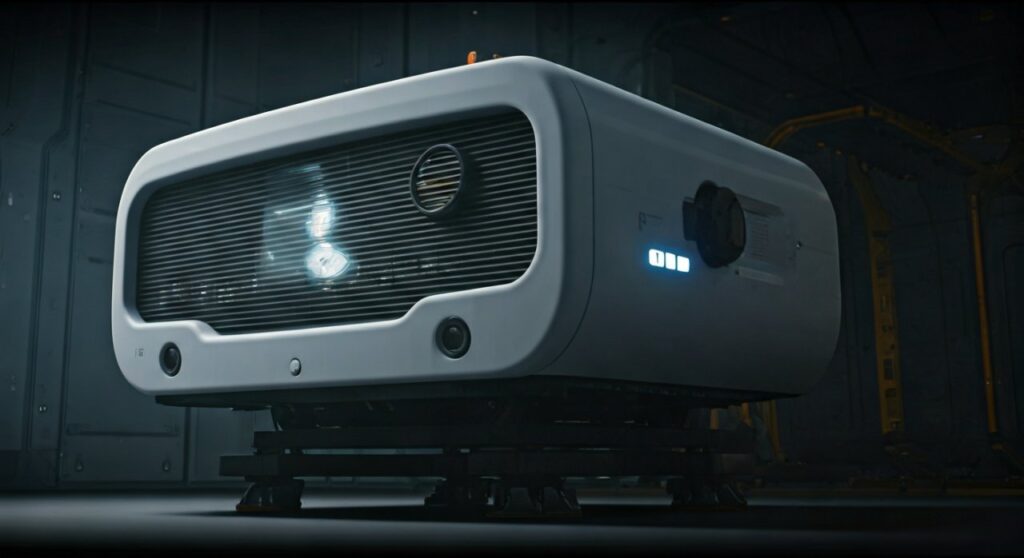
- Grid Compatibility: Small grid projectors only project small grid blueprints; large grid projectors only project large grid blueprints.
- The Connection Point: A projection can only be welded if it is “anchored” to an existing block on the projector’s grid.
- Alignment is Key: Use the Horizontal, Vertical, and Forward offset sliders in the terminal to move the “ghost” image into place.
- Self-Repair: You can use a projector on a functional ship to project its own blueprint for automatic repairs during combat.
- Build Info: Enable “Show Only Buildable” to hide blocks that cannot currently be welded, reducing visual clutter.
Getting Started: How to Use a Projector in Space Engineers
The Projector is arguably the most powerful tool for survival players. Instead of placing blocks one by one, you use a “ghost” template to guide your welding. This ensures your ships are built exactly to specification every time.
To begin, you need to place the Projector block. Ensure the “front” of the block (indicated by a small crosshair or arrow on the model) is facing the direction you want the projection to appear. While you can rotate the blueprint later, getting the orientation right during placement saves significant time.
Once placed, the block requires a steady supply of Electricity. If the projector is unpowered, the holographic image will disappear. Access the control panel (K menu) and navigate to the Projector settings to start the configuration.
Step 1: Loading a Blueprint
Before you can project anything, you need a Blueprint. You can create one by looking at a ship you built and pressing Ctrl + B. This saves the design to your local library.
- Open the Projector’s Terminal.
- Click the Blueprints button.
- Select your desired ship or station design from the list.
- Click Ok to load the “ghost” image into the world.
If the projection does not appear, check the “Enable Projection” checkbox. Also, ensure the blueprint matches the grid size of the projector. You cannot project a massive capital ship using a small-grid projector mounted on a rover.
Step 2: Aligning the Hologram
This is where most engineers struggle. The blueprint often spawns inside the projector or several meters away in the wrong orientation. You must use the Terminal Sliders to fix this.
Understanding the Offset Sliders
In the projector’s control menu, you will see three main categories for adjustment:
- Pitch, Roll, and Yaw: These rotate the blueprint. Adjust these first to ensure the ship is facing the right way.
- Horizontal, Vertical, and Forward Offset: These move the blueprint along the X, Y, and Z axes.
- The Goal: You must move the blueprint until one of its blocks glows Yellow or Bright Blue. This indicates the block is touching the physical grid and is ready to be welded.
Comparison: Manual Building vs. Projector Building
| Feature | Manual Building | Projector Building |
|---|---|---|
| Accuracy | Prone to human error | 100% Match to Blueprint |
| Speed | Slow, block-by-block | Fast, supports multi-welders |
| Repairability | Hard to remember internal layouts | Instant “Ghost” guide for repairs |
| Symmetry | Must be done manually | Handled by the blueprint |
| Automation | Not possible | Fully automatable with Welder Walls |
Step 3: Welding the Projection
Once the blueprint is aligned and “touching” your grid, the actual construction begins. You can weld the blocks manually with a Hand Welder, but for larger projects, Ship-Mounted Welders or Station Welders are highly recommended.
As you weld a block, it changes from a transparent hologram to a solid physical object. If you find a block that won’t weld, check for these three common issues:
- Missing Resources: Your inventory or cargo system lacks the required components (e.g., Steel Plates, Construction Components).
- Obstruction: A physical object or another block is occupying the same space as the projected block.
- Disconnected: The block you are trying to weld is not touching a completed block. Construction must start from the contact point and move outward.
Advanced Technique: The Self-Repair System
Expert players use how to use a projector in space engineers knowledge to make their ships nearly invincible. By placing a projector on a ship and loading that same ship’s blueprint, you create a “Repair Ghost.”
If a piece of your armor or a functional block like a Thruster gets blown off in battle, the projector will immediately show the ghost of that missing block. If you have Welders positioned near your critical systems, they will automatically rebuild the destroyed parts as long as you have the materials in your cargo hold.
Pro Tip: Always check the “Keep Projection” box for repair ships. This ensures the blueprint stays active even after the ship is “complete,” allowing for constant monitoring of damage.
Troubleshooting Common Projector Issues
Even veteran players encounter “Clang” or technical glitches when using projectors. If your projection isn’t working as expected, check these expert-verified solutions:
Why is my projection gray?
A gray or dull projection usually means the Projector is powered off or the “Enable Projection” toggle is unchecked. It can also mean the blueprint is completely buried inside another solid object, hiding the “buildable” highlights.
“Projector is not connected to a grid” error
This happens when you try to weld a block that has no physical path back to the Projector block. Every block in a projection must have a direct neighbor that is already built. If you are building a ship in mid-air, use a Piston or a temporary “scaffolding” of armor blocks to connect the projector to the starting point of the ship.
Multi-grid Blueprints
By default, the standard Space Engineers projector cannot project Subgrids (parts attached via Rotors, Pistons, or Hinges). To build a ship with subgrids, you either need to use specialized mods like the “Multigrid Projector” plugin or project and weld each subgrid individually, which is a very advanced and tedious process.
Expert Tips for Large Scale Construction
When building massive stations or capital ships, use these strategies to stay organized:
- Welder Walls: Build a flat plane of large-grid welders connected to a cargo container. Slowly move the projector (mounted on a ship or piston) through the wall. This “prints” the ship layer by layer.
- Color Coding: Before saving your blueprint, color-code internal systems. This makes it easier to see if a Large Reactor or Jump Drive has been successfully welded through the outer hull.
- Show Only Buildable: In the projector terminal, toggle this setting ON. It hides the thousands of blocks you can’t reach yet, significantly improving your FPS and visual clarity.
FAQ: Frequently Asked Questions
Can I use a projector to change a ship’s color?
No, the projector is used for building and repairing blocks. To change the color of an existing ship, you must use the Middle Mouse Button (or the paint tool shortcut) while looking at the blocks.
Do projectors work in Creative Mode?
Yes, in Creative Mode, clicking a buildable block on a projection will instantly place the entire ship. This is often used for rapid testing or “pasting” ships in when the standard Ctrl+V is disabled by server settings.
How do I build a small ship using a large grid projector?
You cannot do this directly. However, you can attach a Rotor, grind off the large head, and add a Small Rotor Head. Then, build a small-grid projector on that head. This allows your large base to “print” small drones.
Does the projector consume a lot of power?
No, the Projector block has a very low power draw. The main power consumption comes from the Welders you use to build the projection and the Refineries producing the components.
Can I project a blueprint from the Steam Workshop?
Absolutely. Once you subscribe to a ship on the Steam Workshop, it will appear in your F10 Blueprint Menu. From there, you can load it into any projector just like your own designs.









