

TL;DR: How to Project and Trace a Banner
Learning how to use a projector to make a banner is the ultimate DIY hack for creating professional-grade signage without needing artistic skills. You simply project your digital design onto a surface, trace the outlines with a pencil or marker, and paint or fill in the details. This method saves hours of measuring and ensures perfect proportions every time.
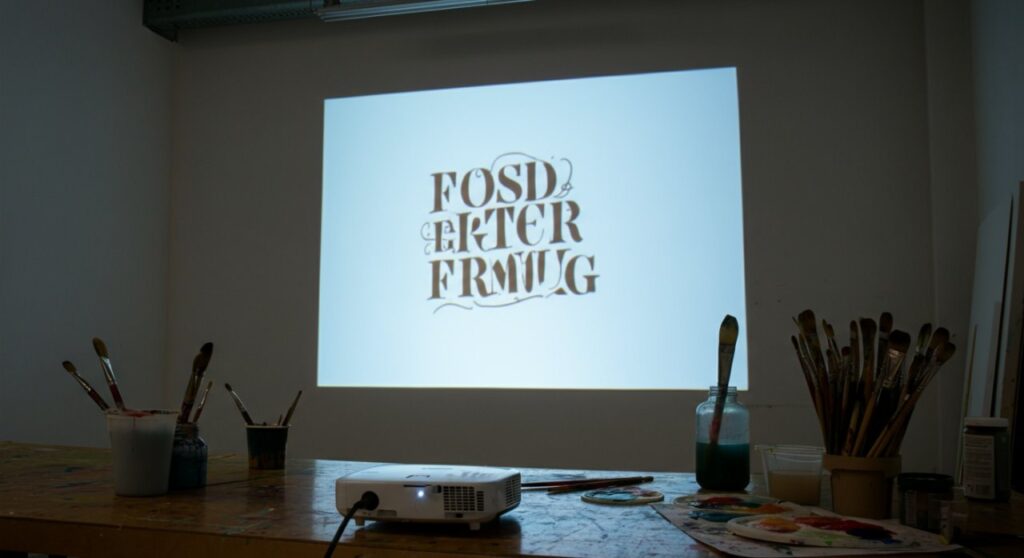
Why Use a Projector for Banner Creation?
If you have ever struggled with freehand lettering or scaling a small design onto a large piece of material, a projector is your best friend. It eliminates the frustration of “wonky” letters and uneven spacing.
- Precision: Projecting an image allows you to achieve perfect scaling from a small screen to a large wall or fabric.
- Time Efficiency: You can skip the tedious process of drawing grids or measuring layout margins.
- Design Freedom: You can use any font, logo, or complex graphic from your computer software.
In my experience, the biggest advantage is the ability to experiment. You can shift the size of your design instantly just by moving the projector closer or further away from your surface.
Essential Gear for Banner Projects
Before you start, you need to ensure you have the right setup. Using a digital projector is standard, but the light output and connection type matter significantly.
Hardware Checklist
| Item | Why You Need It |
|---|---|
| Digital Projector | To display your design file clearly. |
| Tripod/Stand | To stabilize the projector for a steady image. |
| Tracing Medium | Pencil, charcoal, or permanent marker for outlining. |
| Surface | Canvas, wood, wall, or banner vinyl. |
| Connection Cable | HDMI or USB-C to link your laptop/tablet to the projector. |
I recommend using a projector with at least 2000 lumens if you are working in a room that isn’t pitch black. Higher lumen counts ensure the lines stay crisp even with some ambient light.
Step-by-Step: How to Use a Projector to Make a Banner
Follow these steps to master the process of transforming a digital file into a physical banner.
Step 1: Prepare Your Digital Design
Create your banner design using software like Adobe Illustrator, Canva, or PowerPoint. Ensure your file is in a high-resolution format so it doesn’t pixelate when projected onto a large surface.
Step 2: Set Up the Workspace
Darken the room as much as possible for better visibility. Position your projector on a sturdy stand or table directly in front of the area where you intend to place the banner.
Step 3: Align and Scale the Image
Connect your device and turn on the projector. Adjust the zoom and focus until the design fits perfectly within your desired banner dimensions. Use the keystone correction feature on the projector if the image looks slanted or trapezoidal.
Step 4: Trace the Design
Once the image is sharp and properly aligned, grab your marking tool. Carefully trace the outlines of the letters and graphics directly onto your material.
- Pro Tip: Use a light-colored pencil first if you are worried about making mistakes.
- Consistency: Keep your hand steady. If the projector moves, your entire design alignment will shift.
Step 5: Paint and Finish
Turn off the projector and step back to view your work. Once you are satisfied with the tracing, you can begin filling in your design with paint, markers, or fabric dye.
Expert Tips for Success
Based on my professional DIY experience, there are a few “gotchas” to watch out for.
- Mind the Cord: Don’t let your connection cable hang in a way that pulls on the projector, as even a millimeter of movement will ruin your alignment.
- Use Masking Tape: If working on a wall, use painter’s tape to mark the boundaries of your banner before you start projecting.
- Avoid Shadows: Ensure you aren’t standing between the projector and the surface while you trace.
Frequently Asked Questions
Can I use a mini projector for large banners?
Yes, mini projectors work well for shorter distances. However, they may require a darker room and might struggle with extremely large surface areas compared to standard-sized projectors.
Do I need special software to project a banner?
No specialized software is required. Any program that can display an image in full-screen mode, such as PowerPoint, Preview, or a web browser, will work perfectly.
What is the best surface for projection?
A flat, white, or light-colored surface is best. If your banner surface is dark, you may need a high-lumen projector or a white base coat to ensure the projection is visible enough to trace.
How do I fix a distorted projected image?
Most modern projectors have a keystone adjustment setting. Use this in the projector’s menu to square up the image if the projector is positioned at an angle to the wall.









