

To use BandLab without headphones, you must disable the “Monitoring” feature in the studio settings to prevent a feedback loop and lower your device’s volume to minimize background bleed. While headphones are recommended for precision, you can successfully record by using the visual metronome, performing a Latency Test, and applying the Denoise tool in post-production to clean up the audio.
Key Takeaways for Recording on BandLab Without Headphones
If you are in a rush, here is the essential cheat sheet for making music on BandLab when you don’t have your earbuds or studio monitors handy.
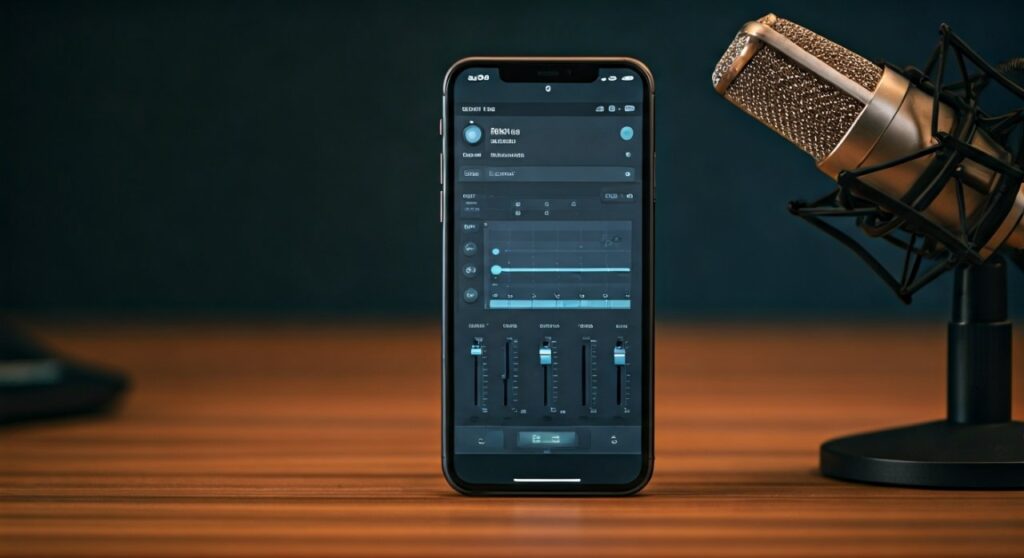
- Turn Monitoring OFF: This is the most critical step to avoid high-pitched screeching (feedback).
- Run the Latency Test: Ensure your audio aligns perfectly with the beat by calibrating your internal speakers and mic.
- Use Visual Cues: Watch the waveform and the visual metronome instead of relying solely on audio.
- Low Volume is Key: Keep your backing track volume just loud enough to hear, or you will record the beat into your vocal track.
- Clean Up Later: Use the “Denoise” and “Noise Gate” features to remove the sound of the speakers from your recording.
Why Using BandLab Without Headphones is Challenging (and How to Fix It)
The primary reason professional producers suggest headphones is to prevent Audio Bleed and Feedback Loops. When you play a backing track through your phone or laptop speakers, the microphone picks that sound up again.
This creates a “messy” track where your vocals are mixed with a low-quality version of the beat. Even worse, if Monitoring is on, the sound goes from the mic to the speaker and back into the mic instantly, causing a piercing scream.
However, as an experienced BandLab user, I have found that you can bypass these issues with the right settings. Whether you are on iOS, Android, or Desktop, the logic remains the same: isolate the input from the output as much as possible.
How to Use BandLab Without Headphones: Step-by-Step Setup
Follow these steps to ensure your project remains clean and your ears stay safe while recording without a headset.
Step 1: Disable Input Monitoring
Before you even hit the record button, you must tell BandLab not to play your voice back to you in real-time.
- Open your BandLab Project.
- Tap on the Track Icon (the instrument or voice track you are using).
- Look for the Monitoring toggle (usually a small speaker or headphone icon).
- Switch it to OFF.
Step 2: Calibrate Your Latency
Latency is the “lag” between when a sound is made and when the software records it. When using built-in speakers, this lag can be more pronounced.
- Go to Settings within the BandLab Studio.
- Select Latency Test or Shift Clock.
- Follow the prompts to let the app “listen” to its own speakers.
- BandLab will automatically calculate the offset to ensure your vocals land exactly on the beat.
Step 3: Adjust the Master and Track Volume
You need to hear the beat to stay in time, but the microphone shouldn’t “hear” it too clearly.
- Set your device volume to about 30-40%.
- In the Mix Editor, lower the volume of the backing tracks.
- Cup your hand slightly behind the microphone to “shield” it from the speaker’s direction.
| Feature | With Headphones | Without Headphones |
|---|---|---|
| Monitoring | Should be ON | MUST be OFF |
| Volume Level | High (for detail) | Low (to prevent bleed) |
| Latency | Low/Native | Requires Calibration |
| Post-Processing | Minimal cleaning | Heavy Denoising needed |
Professional Techniques for Recording Vocals Without Earbuds
I have often found myself in situations—like a park or a hotel room—where I had a melody idea but no gear. Here is how I handle the recording process to get “radio-ready” scratch tracks using only the built-in hardware.
The “One-Ear” Speaker Trick
If you are using a laptop, try to angle the screen so the built-in speakers are pointing away from the internal microphone. On mobile devices, find where your microphone is located (usually the bottom) and ensure the speakers (often top and bottom) aren’t firing directly into it.
Relying on the Visual Metronome
BandLab has a fantastic Visual Metronome feature. Instead of just listening for the “click,” watch the screen flash or the playhead move across the grid. This allows you to turn the click track volume down to zero, eliminating the most annoying type of audio bleed.
Use the “Denoise” Tool Immediately
Once you finish a take, you will likely hear a faint “ghost” of the beat in the background of your vocal.
- Double-tap the recorded region.
- Select Effects.
- Apply the Denoise preset.
- This uses AI to identify the background “hum” of your speakers and remove it, leaving only your voice.
Using BandLab on Desktop vs. Mobile Without Headphones
The experience varies significantly depending on your hardware. BandLab’s web version on Chrome is powerful but sensitive to echo cancellation.
For Mobile Users (iOS & Android)
Mobile devices are designed to handle speaker-to-mic interactions better because of phone call technology. However, the microphones are omnidirectional, meaning they pick up sound from everywhere.
- Pro Tip: Record in a closet or under a blanket. This absorbs the speaker sound so it doesn’t bounce off walls back into the mic.
For Desktop/Laptop Users
Laptops often have much louder speakers and more sensitive mics.
- Pro Tip: Use the Noise Gate effect in the BandLab Studio. Set the “Threshold” so that the mic only “opens” when you are singing loudly, and stays “closed” during the quiet parts of the beat.
Recommended Settings for Different Instruments
| Instrument | Monitoring Setting | Recommended Effect |
|---|---|---|
| Vocals | OFF | DeEsser + Denoise |
| Acoustic Guitar | OFF | Noise Gate |
| Electric Guitar | OFF | Amp Simulator (Clean) |
| MIDI Keyboards | ON | No effect needed |
Note: If you are using MIDI instruments (virtual keys or pads), you actually can keep monitoring on! Since MIDI doesn’t use the microphone, there is zero risk of feedback. You can blast your speakers as loud as you want while playing virtual drums or piano.
How to Fix Common Issues
“I hear a loud screeching sound!”
This is a Feedback Loop. You likely have Monitoring turned ON while your speakers are active. Immediately turn your device volume down and toggle Monitoring to OFF in the track settings.
“My vocals are out of sync with the beat.”
This is a Latency issue. Without headphones, the processing time for the speaker output can cause delays. Run the Latency Test in the settings menu. If that fails, manually grab your recorded audio region and slide it slightly to the left until it aligns with the snare hits.
“The beat is louder than my voice in the recording.”
Your device volume is too high. Lower the volume of the phone speakers. If you can’t hear the beat, try putting the speaker closer to your ear and the microphone closer to your mouth.
Expert Perspective: Is it worth it?
As a producer, I always say: “A bad recording of a great idea is better than no recording at all.”
While you shouldn’t mix a final album without headphones, using BandLab without them is perfectly fine for:
- Writing lyrics and checking flow.
- Recording melody ideas (Scratch Tracks).
- Practicing your timing.
- Collaborating on the go.
Frequently Asked Questions
Can I use Bluetooth speakers with BandLab?
I do not recommend using Bluetooth speakers because the latency (delay) is much higher than built-in speakers. If you must use them, you will need to manually adjust your tracks by 100-300ms after recording to get them back in time.
Is it possible to record a high-quality song without headphones?
It is difficult but possible. You will need to use a very aggressive Noise Gate and EQ to cut out the frequencies where the backing track “bled” into your microphone.
Why does BandLab say “Headphones Recommended”?
This is a standard warning to prevent users from accidentally creating feedback loops that could damage their hearing or their device’s speakers. It also ensures the highest possible audio isolation.
Does turning off monitoring affect the final sound?
No. Monitoring only affects what you hear while recording. It does not change the quality or the volume of the audio being captured by the microphone.









