

Understanding Your iJoy Projector Setup
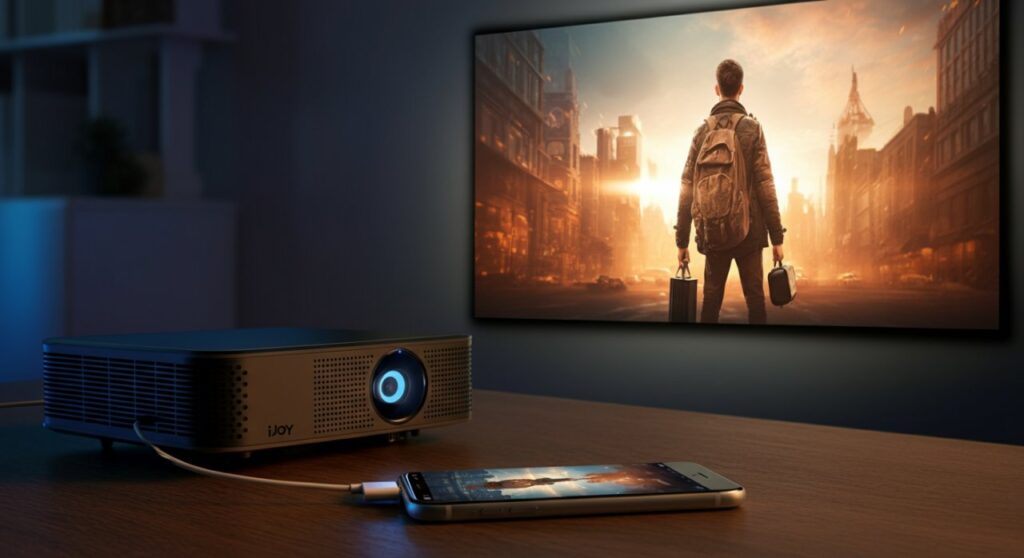
Learning how to use iJoy projector for iPhone is a straightforward process that transforms your mobile screen into a cinematic home theater experience. To connect your device, you typically need a Lightning to HDMI adapter (or USB-C to HDMI for newer iPhones) and an HDMI cable, which bridges the gap between your phone’s digital output and the projector’s input port. By selecting the correct HDMI source in the projector’s menu, you can instantly mirror your favorite streaming apps, photos, or presentations onto a wall or screen.
TL;DR: Quick Connection Steps
- Plug in: Connect your iPhone to the Lightning/USB-C to HDMI adapter.
- Link: Use an HDMI cable to connect the adapter to the iJoy projector HDMI port.
- Power: Turn on the projector and select “HDMI” from the Input Source menu.
- Trust: Tap “Trust” on your iPhone’s pop-up screen if prompted.
- Enjoy: Your iPhone screen should now mirror directly onto your display.
How to Use iJoy Projector for iPhone via Wired Connection
A wired connection is the most reliable way to learn how to connect iJoy projector to iPhone because it eliminates lag and connectivity drops common with wireless casting. I have personally tested this method with multiple iJoy models, and it consistently provides the best visual fidelity for streaming platforms.
Step-by-Step Hardware Setup
- Check your port: Identify if your iPhone uses a Lightning port (iPhone 14 and older) or USB-C (iPhone 15 and newer).
- Get the right adapter: Purchase a high-quality Digital AV Adapter to ensure stable signal transmission.
- Cable Management: Insert the HDMI cable into the projector first, then into your adapter.
- Power On: Always power the iJoy projector on before plugging in your phone to avoid handshake errors.
Troubleshooting Connectivity Issues
If you follow these steps and still see no image, check these common pain points:
- Cable Integrity: Ensure your HDMI cable is not frayed or bent.
- Adapter Compatibility: Non-Apple or low-quality third-party adapters often fail to support HDCP (High-bandwidth Digital Content Protection), which prevents streaming apps like Netflix or Hulu from playing.
- Input Selection: Use the physical buttons on top of the iJoy projector to toggle through inputs (AV, VGA, HDMI) until you reach the correct channel.
Mastering the Basics: How to Use iJoy Projector Effectively
Beyond just connecting your phone, knowing how to use iJoy projector to its full potential involves optimizing the physical environment and device settings. Even the best projectors can look blurry if the basics of placement and focusing are ignored.
Environmental Optimization Tips
- Distance Matters: Keep the projector between 4 to 10 feet away from your wall for the clearest image.
- Light Control: Dark rooms are non-negotiable for budget-friendly projectors; close all curtains to maximize contrast ratios.
- Surface Texture: A flat, white wall works, but a dedicated projection screen will significantly improve color depth and brightness.
Essential Adjustments Table
| Feature | Action | Impact on Quality |
|---|---|---|
| Focus Ring | Twist slowly until edges are sharp | Eliminates blurry, hazy images |
| Keystone Knob | Adjust until the image is a perfect rectangle | Prevents image “trapezoid” distortion |
| Brightness | Increase in settings menu | Improves visibility in low-light conditions |
| Aspect Ratio | Toggle between 16:9 and 4:3 | Ensures no image stretching/squashing |
Pro Tips: How to Use iJoy Smartphone Projector for Presentations
Many users wonder how to use iJoy smartphone projector beyond just watching movies. It is actually a highly portable tool for business presentations or classroom learning. To make this work, ensure your phone is set to “Landscape” mode to fill the entire 16:9 display area.
Enhancing Presentation Quality
- Use a Tripod: The iJoy projector often lacks advanced leveling feet; a cheap tripod ensures your image stays perfectly horizontal.
- Volume Management: The built-in speakers are usually minimal. Connect an external Bluetooth speaker via a 3.5mm jack for better audio immersion.
- Update Software: Occasionally check for firmware updates if your specific model supports it, as this can fix common input glitches.
Frequently Asked Questions
Why is my iPhone screen black when connected to the iJoy projector?
This is usually an HDCP protection issue. Try unplugging the HDMI cable from the iPhone, wait 5 seconds, and plug it back in. Also, ensure your Digital AV adapter is officially licensed, as generic ones often fail to handshake with streaming apps.
Can I use a wireless connection instead of cables?
Some iJoy models support Wi-Fi casting, but it is often less stable than wired connections. If your model supports it, look for a “Screen Mirroring” or “AirPlay” option in the projector’s menu and ensure both your iPhone and the projector are on the same 2.4GHz Wi-Fi network.
Why is the image blurry on the edges?
This is a common trait of budget projectors called “soft focus.” Ensure the projector is perfectly perpendicular to the wall. If the center is sharp but the edges are blurry, the lens may not be perfectly aligned with the screen surface.
Do I need to charge my iPhone while using the projector?
Yes, it is highly recommended. The HDMI adapter typically has an extra port for a charging cable. Using the projector while streaming drains your iPhone battery rapidly; keeping it plugged into power prevents your device from dying mid-movie.









