

To use your iPad mic with headphones, simply plug your headphones into the USB-C port or 3.5mm jack; the iPad will automatically prioritize the built-in microphone if the headphones lack one. If your headphones have a mic but you prefer the iPad’s internal mic, you must use a TRS-to-TRRS adapter or specific app settings like those found in GarageBand to manually select the input source.
Understanding How to Use iPad Mic with Headphones
The struggle to balance high-quality audio monitoring with a reliable microphone is a common pain point for iPad Pro and iPad Air users. Whether you are recording a podcast, jumping into a Discord call, or attending a Zoom meeting, the iPad’s hardware logic can sometimes be frustratingly “automated.” By default, iPadOS is designed to switch to the most recently connected audio input.
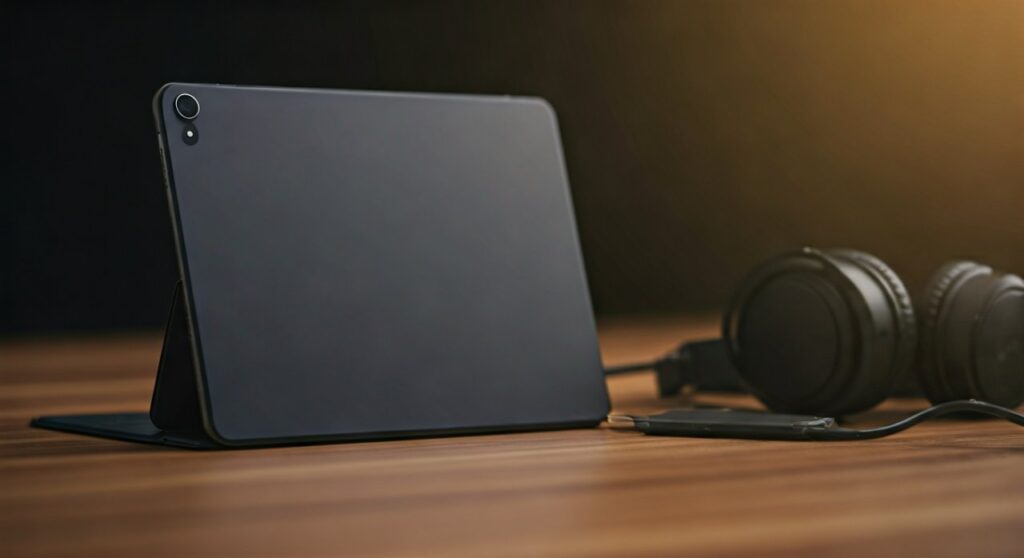
If you plug in a pair of Apple EarPods, the system assumes you want to use that tiny inline microphone. However, if you are using high-end Sennheiser or Sony studio monitors that lack a microphone, the iPad should intelligently keep the internal mic active. The complexity arises when you want to “split” these functions—using the superior acoustics of your built-in iPad microphone while hearing your colleagues through your favorite over-ear headphones.
Key Takeaways: Quick Fixes for Audio Input
| Connection Type | Default Mic Behavior | How to Force iPad Mic |
|---|---|---|
| Standard 3.5mm (No Mic) | Uses Internal iPad Mic | Automatic; no action needed. |
| Headset with Mic (TRRS) | Uses Headset Mic | Requires a TRRS Splitter or software override. |
| Bluetooth (AirPods/Sony) | Uses Bluetooth Mic | Change input in Control Center (supported apps only). |
| USB-C / Thunderbolt | Varies by Hub | Use a USB Audio Interface for manual routing. |
Step 1: Identify Your Headset Connector Type
Before you can effectively learn how to use ipad mic with headphones, you must identify the physical connector on your gear. This dictates how iPadOS perceives the hardware.
TRS vs. TRRS: The Critical Difference
Most professional studio headphones use a TRS (Tip-Ring-Sleeve) plug, which has two black rings. These do not carry a microphone signal. If you use these with an Apple USB-C to 3.5mm Headphone Jack Adapter, your iPad will automatically continue using its high-quality built-in microphones.
Conversely, “Headsets” (like gaming gear or phone earbuds) use a TRRS (Tip-Ring-Ring-Sleeve) plug with three rings. The third ring carries the microphone signal. When these are plugged in, the iPad disables its internal mic to prevent echo and feedback. To bypass this, you would need to use a “Y-Splitter” cable that separates the headphone and microphone signals, leaving the microphone side of the splitter unplugged.
Step 2: Configuring Wired Headphones on USB-C iPads
Most modern iPads, including the iPad Pro M2 and iPad Air 5, have replaced the headphone jack with a USB-C port. This changes the digital-to-analog signal chain significantly.
- Use an Official Adapter: Start by connecting the Apple USB-C to 3.5mm Adapter. Third-party adapters often lack the necessary DAC (Digital-to-Analog Converter) chips to handle input/output switching correctly.
- Connect the Headphones: Plug your headphones into the adapter.
- Test the Input: Open the Voice Memos app. Tap the record button and scratch the area near the iPad’s camera (where the internal mics are located). If the waveform jumps significantly, you are successfully using the internal iPad mic with your headphones.
- The “Half-Plug” Trick: In my experience as a field recorder, sometimes partially inserting a TRRS plug can trick the iPad into not recognizing the mic ring, though this is not recommended for long-term use as it can damage the port.
Step 3: How to Use iPad Mic with Bluetooth Headphones
Using Bluetooth headphones like AirPods Max or Bose QuietComfort while keeping the iPad’s internal mic active is more restricted due to iPadOS limitations.
The “Control Center” Limitation
Unlike macOS, iPadOS does not have a native “Sound Settings” menu that lets you select “Input” and “Output” independently for the entire system.
- AirPods Users: When you put your AirPods in, the iPad defaults both input and output to them.
- The Workaround: You must rely on App-Specific settings. For example, in Zoom, you can occasionally tap the audio icon to select “Internal Microphone” while keeping the output to “Bluetooth.” However, this is increasingly rare in newer updates.
Step 4: Advanced Audio Routing via App Settings
If you are a creator, you likely need more control over how to use ipad mic with headphones. Certain “Pro” apps allow you to override the system’s default behavior.
Using GarageBand for Manual Selection
GarageBand is a powerful, free tool that acts as a manual audio router.
- Open a new Audio Recorder project.
- Tap the Jack icon (Input Settings).
- Look for the “Inter-App Audio” or “Input Settings” toggle.
- If using a USB Interface, you can specifically select Channel 1 (Internal) or Channel 2 (External).
Discord and Communication Apps
In Discord, go to User Settings > Voice. While iPadOS usually forces the headset mic, if you are using a USB-C Hub with a separate mic input and headphone output, you can sometimes “cheat” the system by leaving the hub’s mic port empty. This forces the iPad to fallback to its internal dual-microphone array.
Step 5: Using a USB-C Hub for Professional Setups
For the most reliable experience in learning how to use ipad mic with headphones, I highly recommend a USB-C Hub (like those from Anker or Satechi).
By using a hub that has a dedicated 3.5mm audio jack, the iPad treats the connection as a “USB Audio Device.”
- Pro Tip: If your hub has both a headphone jack and a microphone jack, plug your headphones into the headphone jack only.
- Because the iPad detects a “USB Audio Out” but no “USB Audio In,” it defaults back to the iPad’s internal microphone array.
- This is the “Gold Standard” for streamers who want the studio quality of the iPad mic (which is surprisingly good on the iPad Pro models) while using high-impedance headphones.
Troubleshooting Common Audio Issues
- No Sound in Headphones: Ensure your iPadOS is updated to the latest version. Sometimes, the Springboard process (which manages the UI and hardware) glitches. A hard restart (Volume Up, Volume Down, Hold Power) usually fixes this.
- Muffled Mic Quality: If you are successfully using the iPad mic, ensure your iPad case isn’t covering the small pinholes near the top edge and back camera. These are the Beamforming microphones.
- Echo/Feedback: If you use the iPad mic with open-back headphones, the mic might pick up your headphone audio. Switch to closed-back headphones to maintain a clean recording.
Frequently Asked Questions (FAQs)
Can I use my iPad mic and headphones at the same time for gaming?
Yes, but it depends on the headphones. If your headphones have no mic (TRS plug), the iPad mic stays active by default. If they have a mic (TRRS), the iPad will switch to that. To force the iPad mic, use a 3.5mm splitter to isolate the headphone signal.
Why does my iPad ignore my headphone mic and use the internal one?
This usually happens if you are using a TRS (two-ring) adapter or plug. The iPad doesn’t see a microphone connection, so it stays on the internal mic. To fix this, ensure you are using a TRRS (three-ring) compatible adapter or headset.
Is the internal iPad microphone better than headset mics?
In many cases, yes. The iPad Pro (2018 and later) features a “studio-quality” five-microphone array. These often outperform the cheap boom mics found on gaming headsets or the inline mics on budget earbuds.
How do I switch the microphone input on iPadOS 17 or 18?
Currently, iPadOS does not have a global toggle for microphone input selection in the Settings app. You must manage this via the hardware connection type (using a splitter) or within specific professional apps like Filmic Pro or GarageBand.
Will using an external USB mic disable my headphones?
Not if you use a USB-C Hub. You can plug a Blue Yeti into the USB port and your headphones into the 3.5mm jack on the hub. The iPad will then allow you to monitor audio through the headphones while recording through the USB mic.









