

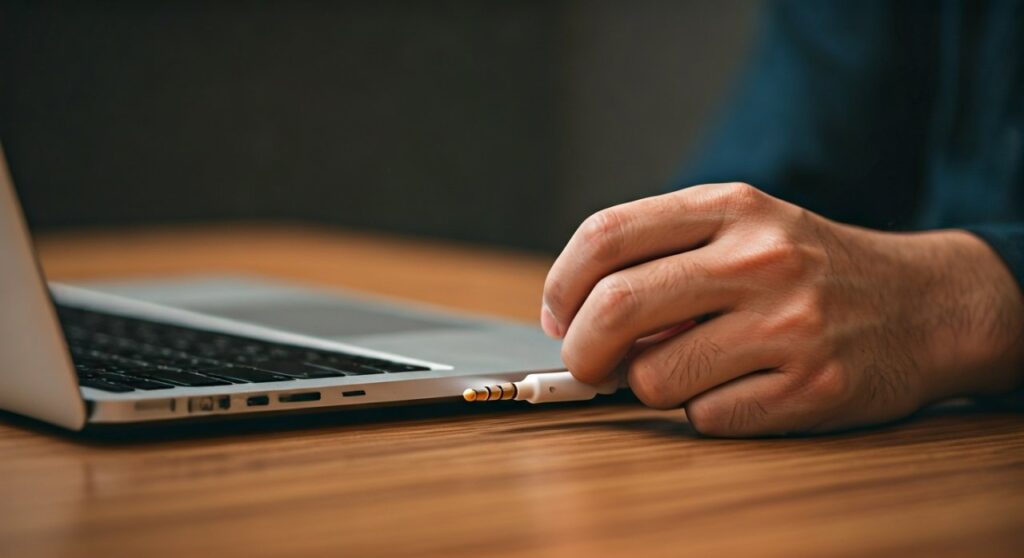
To use wired headphones on a MacBook, simply plug the 3.5mm connector into the headphone jack located on the side of your device. If your MacBook model only features USB-C ports, you must use a USB-C to 3.5mm Headphone Jack Adapter to establish the connection. Once plugged in, your Mac should automatically switch audio output; if not, navigate to System Settings > Sound > Output and select your headphones from the list.
Key Takeaways: How to Use Wired Headphones on MacBook
| Feature | Connection Method | Requirements |
|---|---|---|
| MacBook Air/Pro (with Jack) | Direct 3.5mm Plug | Standard 3.5mm wired headphones. |
| Modern MacBooks (USB-C only) | USB-C Adapter | Apple USB-C to 3.5mm Adapter or Dongle. |
| Audio Configuration | System Settings | Manual selection if auto-switch fails. |
| Dual Audio | Audio MIDI Setup | Allows connecting two headphones simultaneously. |
| High Impedance Support | Direct Plug-in | Available on MacBook Pro 2021 or later. |
Understanding Your MacBook’s Audio Ports
Before learning how to use wired headphones on macbook, you must identify which ports your specific model possesses. Apple has transitioned through several hardware phases, shifting from standard ports to a minimalist USB-C/Thunderbolt layout.
Most older MacBooks and the newest M1, M2, and M3 MacBook Pro/Air models still include a dedicated 3.5mm headphone jack. This jack is typically located on the right or left side of the chassis. It supports standard headphones, headsets with built-in microphones, and even high-impedance studio monitors on professional-grade models.
If you own a specific “ultra-thin” iteration or use a setup with many peripherals, you might find yourself looking at Thunderbolt (USB-C) ports only. In this case, knowing how to connect wired headphones to macbook involves using a digital-to-analog converter (DAC) or a simple dongle.
Step-by-Step: How to Connect Wired Headphones to MacBook
Connecting your gear is usually a “plug-and-play” experience. However, software settings can sometimes interfere with the audio path. Follow these steps to ensure a perfect connection.
Physical Connection
Insert your headphone plug firmly into the 3.5mm jack. If you are using a newer model without a jack, plug your Apple USB-C adapter into a Thunderbolt port first, then connect your headphones to the adapter.
Verify Output Settings
MacOS is designed to switch audio automatically. If the sound still comes from the internal speakers, follow this path:
- Click the Apple Menu () and select System Settings (or System Preferences).
- Scroll down to the Sound section in the sidebar.
- Click the Output tab.
- Look for External Headphones or Headphones (Built-in) and click on it to highlight it.
Adjust Volume Levels
Ensure the Output Volume slider at the bottom of the Sound menu is turned up. Also, check the physical volume buttons on your keyboard or the Control Center in the top menu bar.
Using Adapters for USB-C Only MacBooks
If you are wondering how to connect headphones to macbook models like the 12-inch MacBook or certain older Air versions that lacked the jack, the answer lies in the dongle.
The Apple USB-C to 3.5mm Headphone Jack Adapter is the most reliable option. It contains a small DAC that converts the digital signal from the USB-C port into high-quality analog sound.
Third-party USB-C hubs also frequently feature a “Headphone” or “Audio Out” port. When using a hub, ensure it is powered or properly seated in the Thunderbolt port, or the Mac might not recognize the audio device as a valid output.
How to Connect Two Headphones to MacBook Simultaneously
A common question for travelers or creators is how to connect two headphones to macbook so two people can listen to the same movie or track. MacOS has a powerful built-in tool for this called Audio MIDI Setup.
- Plug in both sets of headphones (e.g., one via the 3.5mm jack and one via a USB adapter/Bluetooth).
- Open Finder, go to Applications > Utilities, and launch Audio MIDI Setup.
- Click the plus (+) icon in the bottom left corner and select Create Multi-Output Device.
- In the right-hand panel, check the boxes for both sets of headphones you want to use.
- Go back to System Settings > Sound and select Multi-Output Device as your main output.
This method works for any combination, including how to connect two bluetooth headphones to macbook or mixing one wired and one wireless set.
Connecting Bluetooth Headphones to Mac: A Quick Guide
While your primary goal might be wired, most users eventually need to know how to connect bluetooth headphones to mac for a cable-free experience. This process is slightly different from the “plug-and-play” wired method.
How to Pair Bluetooth Headphones with Mac
- Put your headphones (like Sony, Bose, or JBL) into Pairing Mode.
- On your Mac, click the Bluetooth icon in the menu bar.
- Select Bluetooth Settings.
- Find your device in the list and click Connect.
For specific brands, the steps are nearly identical. If you want to know how to connect my sony headphones to my mac, usually holding the power button for 7 seconds enters pairing mode. For those asking how to connect jbl headphones to macbook, the dedicated Bluetooth button on the earcup is your gateway.
Troubleshooting: Why Won’t My Headphones Connect?
Sometimes, you plug everything in, but there is silence. This can be frustrating, especially during a meeting. Here is a checklist to solve the “why won’t my headphones connect” dilemma.
Check for Physical Obstructions
Lint or dust in the 3.5mm jack can prevent a full connection. I once spent an hour troubleshooting a “broken” jack only to find a tiny piece of pocket lint blocking the pin. Use a toothpick or compressed air to clean the port gently.
Reset the Core Audio Process
If the software is glitchy, you can restart the audio engine via Terminal:
- Open Terminal (via Spotlight Search).
- Type
sudo killall coreaudiodand press Enter. - Type your Mac password and press Enter again.
- This resets the audio driver without needing a full reboot.
Troubleshooting Specific Brands
If you are struggling with how to connect beats headphones to mac or how to connect bose headphones to my mac, ensure they aren’t currently “stolen” by your iPhone. Apple devices often auto-switch; turning off Bluetooth on your phone temporarily can help the Mac “grab” the connection.
Expert Insights: High-Impedance Support on New MacBooks
For audiophiles, how to use wired headphones on macbook changed significantly in 2021. The 14-inch and 16-inch MacBook Pro and the 2022 M2 MacBook Air features a jack with DC load detection and adaptive voltage output.
This means if you plug in high-impedance headphones (like the Sennheiser HD600 series), the Mac detects the resistance and automatically increases the voltage. You no longer need an external amplifier for many professional studio headphones. This is a massive “Information Gain” for creators who want a minimalist setup without sacrificing audio fidelity.
Frequently Asked Questions (FAQs)
Can I use Apple EarPods with a Lightning connector on my MacBook?
You cannot plug Lightning EarPods directly into a MacBook because Macs do not have Lightning ports. You would need a Lightning to USB-C adapter, though it is often more cost-effective to buy the USB-C version of EarPods or use a standard 3.5mm pair.
How do I connect Apple headphones to a laptop if it’s not a Mac?
If you are using Apple headphones (3.5mm version) on a Windows laptop, they function like any standard headphones. Simply plug them into the audio jack. If they are AirPods, you must pair them via the Windows Bluetooth settings menu.
Why is my Mac not recognizing my wired headphones?
This is usually due to the Sound Output setting being stuck on “Internal Speakers.” Manually change it in System Settings > Sound. If that fails, try resetting the NVRAM/PRAM (on Intel Macs) or simply restarting your Apple Silicon Mac.
How do I connect my Sony headphones to my Mac if they are wired?
Just plug the Sony 3.5mm cable into the jack. If your Sony headphones have a detachable cable with a built-in mic, ensure the plug is pushed all the way in, as some cases or sleeves can prevent a flush connection.
Is it better to use USB-C or the 3.5mm jack for audio?
For most users, the 3.5mm jack is more convenient. However, USB-C headphones or DACs can sometimes provide better sound quality by bypassing the Mac’s internal analog circuitry, especially if you are using a high-end external DAC.









