

Understanding How to Work an Epson Projector
Learning how to work an Epson projector is straightforward once you understand the core connection and configuration steps. To get started, ensure your projector is placed on a stable surface, connected to a power source, and linked to your media device via HDMI or wireless network. Once powered on, simply use the input source button to sync your display, and adjust the focus ring or keystone correction to sharpen your image.
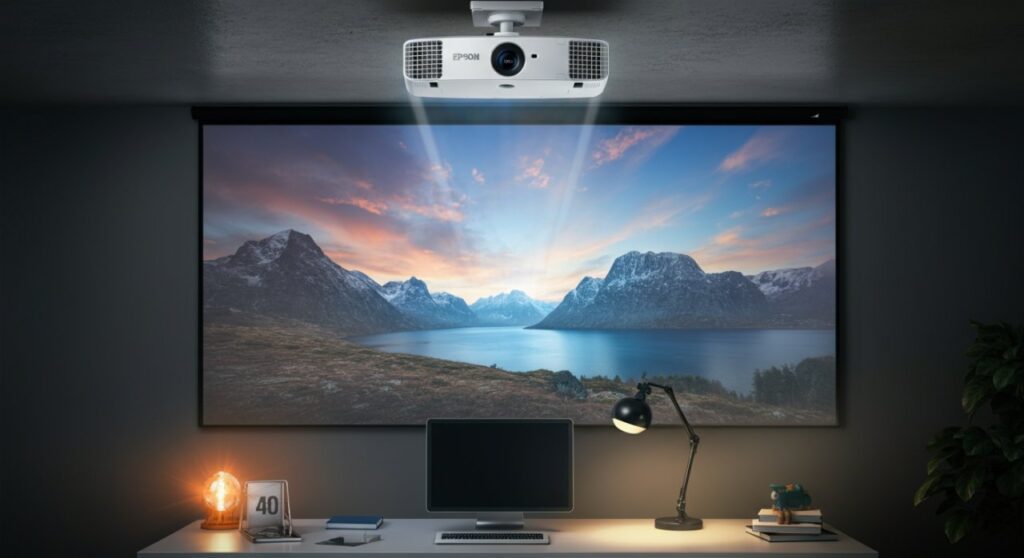
TL;DR: Quick Start Checklist
If you are in a rush to get your presentation or movie night started, follow these essential steps:
- Power Up: Connect the power cable and press the Power button on the unit or remote.
- Source Selection: Press the Source Search button on your remote to toggle between HDMI, Computer, or USB inputs.
- Adjust Focus: Locate the focus ring near the lens and rotate it until the text or image becomes sharp.
- Keystone Correction: Use the Keystone buttons to square off your image if the projection appears trapezoidal.
How to Connect to an Epson Projector
Knowing how to connect to an Epson projector is the most common hurdle for new users. Whether you are using a laptop, smartphone, or gaming console, the process follows a standard workflow.
Wired Connections (The Reliable Standard)
For the most stable connection, HDMI remains the industry gold standard. It carries both high-definition video and audio signals seamlessly.
- Insert one end of the HDMI cable into your laptop or media player.
- Plug the other end into the HDMI 1 or HDMI 2 port on the back of the Epson projector.
- Turn on your device; most modern Epson units feature Auto Source Search and will detect the signal immediately.
Wireless and Network Connectivity
Many modern Epson projectors support wireless connectivity via the iProjection app or built-in Wi-Fi modules.
- Ensure your projector and phone/laptop are on the same Wi-Fi network.
- Download the Epson iProjection software or app.
- Select your projector from the device list within the application to start mirroring your screen.
How to Operate Epson Projector Features
Once you have mastered how to use an Epson projector for basic display, you should explore the advanced settings. These features allow you to optimize your viewing experience regardless of lighting conditions.
| Feature | Purpose | How to Adjust |
|---|---|---|
| Keystone | Fixes image distortion | Use remote buttons or OSD menu |
| Focus | Sharpens the image | Manually rotate the lens ring |
| Color Mode | Optimizes color accuracy | Select via ‘Color Mode’ button |
| Zoom | Adjusts image size | Use the zoom lever on the lens |
How to Connect Epson Remote to Projector
If your remote is unresponsive, you may need to re-sync or check the IR sensor path. Simply point the remote directly at the front receiver of the projector. If it still fails, ensure the batteries are fresh and there are no obstructions between the remote and the unit.
Best Practices for Optimal Projection
To truly understand how to work an Epson projector like a pro, you must manage your environment. I have found that even the most expensive projector looks poor in a room with too much ambient light.
- Control Lighting: Always try to use your projector in a darkened room for the best contrast ratio.
- Surface Matters: Avoid projecting on textured walls; use a dedicated projector screen for a smooth, reflective surface.
- Ventilation: Never block the air intake vents. These projectors generate significant heat, and proper airflow prevents unexpected shutdowns.
Troubleshooting Common Issues
When you learn how to work a Epson projector, you will eventually run into a snag. Here is how I handle the most common issues based on my personal experience:
- No Image on Screen: Check that the lens cap is removed and the input source matches the cable port.
- Fuzzy Image: This is almost always a focus issue. Adjust the focus ring until the pixels look crisp.
- Projector Turning Off: This usually indicates the unit is overheating. Check if the air filter is clogged with dust and needs cleaning.
Frequently Asked Questions
How do I turn on an Epson projector if the power button isn’t working?
First, verify the power cable is firmly plugged into both the wall outlet and the projector. If the light on the control panel does not glow, try a different power outlet or test the cable on another device.
Can I connect a smartphone to an Epson projector?
Yes, you can use a USB-C to HDMI adapter for a wired connection, or use the Epson iProjection app if your projector model supports wireless connectivity.
How to fix a tilted image on my Epson projector?
Use the Keystone function found in the projector’s menu settings. This tool digitally corrects the geometry of the image to ensure it is perfectly rectangular, even if the projector is placed at an angle.
Why is my Epson projector flickering?
Flickering is often caused by a loose HDMI cable or an incompatible refresh rate setting on your computer. Try swapping the HDMI cable with a high-quality replacement first.









