

Understanding What Sony Headphones Are Called on Bluetooth
When you put your Sony headphones into pairing mode, they usually appear in your Bluetooth list as their specific model number, such as WH-1000XM5 or WF-C700N. Unlike Apple’s “AirPods,” Sony typically uses alphanumeric codes starting with WH- (for over-ear), WF- (for true wireless earbuds), or WI- (for neckbands).
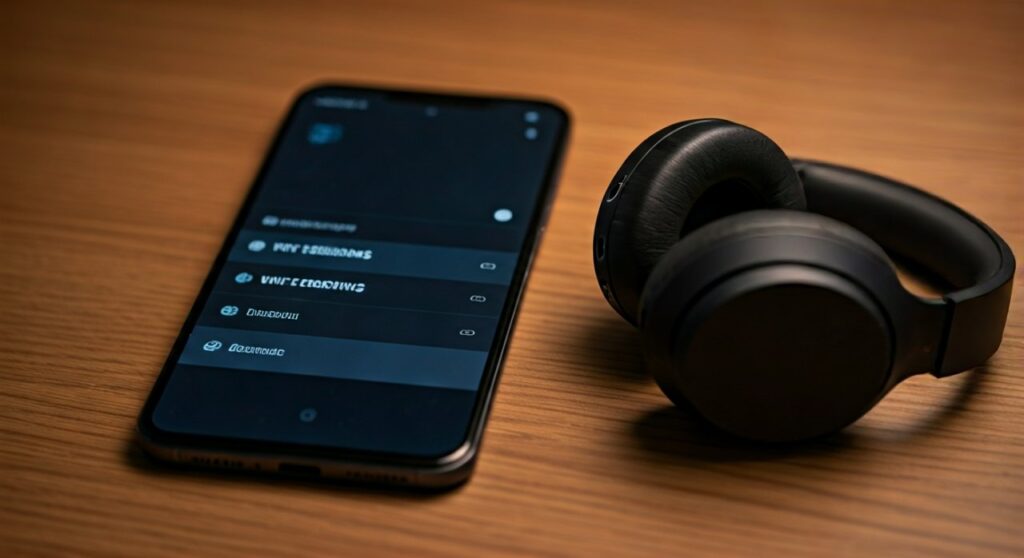
If you are using a new pair, you might also see a temporary name like LE_… (Low Energy) before the full model name populates. In my experience testing dozens of Sony audio products, identifying the correct name is the first step to a stable connection.
Key Takeaways: Quick Identification Guide
| Headphone Type | Common Bluetooth Name Example | Series Name |
|---|---|---|
| Over-Ear | WH-1000XM5, WH-CH720N | 1000X Series, CH Series |
| Earbuds | WF-1000XM4, WF-C500 | WF Series |
| LinkBuds | LinkBuds S, LinkBuds | Open-ear / Compact |
| Neckbands | WI-C100, WI-XB400 | WI Series |
| Gaming | INZONE H9, INZONE H3 | INZONE Series |
What do Sony headphones show up as on Bluetooth?
The most common point of confusion for new users is that Sony does not use “friendly names” by default. If you are looking for “Sony Wireless Headphones” in your settings, you likely won’t find it.
Instead, look for the model number printed on the box or the earcups. For example, if you own the industry-leading noise-canceling headphones, they will appear as WH-1000XM4 or WH-1000XM5.
In some cases, especially on Android devices using Google Fast Pair, a pop-up might show the actual product image and the name “Sony WH-1000XM5.” However, in the standard Bluetooth settings menu, it almost always reverts to the alphanumeric code.
The “LE_” Prefix Mystery
Have you noticed a device named LE_WH-1000XM5? The LE stands for Bluetooth Low Energy.
This usually appears when the headphones are communicating with the Sony Headphones Connect app or using a secondary connection for data rather than high-quality audio. Always pick the name without the “LE_” prefix for the best music listening experience.
Step-by-Step: How to Find Your Sony Headphones on Bluetooth
To see the name appear on your screen, you must correctly trigger the Pairing Mode. Each Sony model has a slightly different method to initiate this.
Pairing Over-Ear Models (WH-Series)
For models like the WH-1000XM5 or WH-CH520, follow these steps:
- Ensure the headphones are turned off.
- Press and hold the Power button for about 7 seconds.
- Wait until the indicator light flashes blue repeatedly.
- Open your device’s Bluetooth settings and look for the WH-[Model Number].
Pairing True Wireless Earbuds (WF-Series)
For the WF-1000XM4 or LinkBuds S, the process is slightly different:
- Place both earbuds in the charging case.
- Leave the lid open.
- Press and hold the Pairing Button on the back of the case for 5-7 seconds.
- The case light will blink blue. Look for WF-[Model Number] on your phone.
Using the Sony Headphones Connect App
I highly recommend downloading the Sony Headphones Connect app from the Google Play Store or Apple App Store.
Once the app detects your device, it will guide you through the pairing process. The app often makes the Bluetooth name much easier to find by automatically triggering the system’s pairing request.
Why Is My Sony Headphone Name Not Showing Up?
If you’ve followed the steps and still don’t see what do sony headphones show up as on bluetooth, there are several expert-level troubleshooting steps you can take.
Reset the Bluetooth List
Sometimes your phone’s Bluetooth cache becomes cluttered. Turn Bluetooth off for 10 seconds and then turn it back on to refresh the scan.
Clear Previous Pairings
Sony headphones can typically “remember” up to 8 devices. If the memory is full, they might struggle to broadcast their name to a new device.
You can perform a Factory Reset by holding the Power and Custom buttons simultaneously (on over-ear models) while plugged into power, or via the charging case for earbuds.
Battery Level Issues
I have observed that many Sony models will not enter pairing mode or broadcast their Bluetooth ID if the battery is below 10%. Charge your device for at least 30 minutes before attempting to pair.
How to Rename Your Sony Headphones
If you find the model numbers like WH-1000XM5 too difficult to remember, you can change them. This makes it much easier to identify your device in a crowded room.
On iPhone (iOS)
- Go to Settings > Bluetooth.
- Tap the “i” icon next to your Sony model.
- Tap Name and type in your preferred label, like “John’s Sony XM5.”
On Android
- Open Settings > Connected Devices.
- Tap the Gear icon next to the Sony device name.
- Tap the Pencil icon (Edit) at the top right to rename it.
Via the Sony App
Inside the Headphones Connect app, you can often find a setting to change the device’s identity. This change is sometimes saved to the hardware itself, meaning the new name will show up even when you connect to a different laptop or tablet.
Comparing Sony Bluetooth Names to Competitors
Sony’s naming convention is technical, whereas brands like Bose or Apple use more consumer-friendly terms.
| Brand | Default Bluetooth Name Style | Example |
|---|---|---|
| Sony | Alphanumeric Model Code | WH-1000XM5 |
| Apple | User Name + Product | John’s AirPods Pro |
| Bose | Brand + Model Name | Bose QuietComfort 45 |
| Sennheiser | Brand + Model | MOMENTUM 4 |
While Sony’s names are harder to read, they are very precise. This helps users distinguish between the XM4 and XM5 models, which have different features and sound profiles.
Advanced Insights: Bluetooth Profiles and Codecs
When you see what are sony headphones called on bluetooth, you are seeing the result of the SDP (Service Discovery Protocol). Sony devices broadcast specific “Friendly Names” through this protocol.
LDAC and Naming
Sony uses the LDAC codec for high-resolution audio. On Android phones, when you connect to WH-1000XM5, you might see an “LDAC” icon appear next to the name in the Bluetooth settings. This confirms you are getting the highest possible bit rate.
Multipoint Connection
If you have Multipoint Connection enabled, your headphones might appear as connected to two devices simultaneously. In the Bluetooth list of your second device, the name remains the same (e.g., WF-1000XM5), but it may show a “Connected for calls” status instead of “Connected for audio.”
Summary of Sony Bluetooth Naming Patterns
To help you identify your specific device, here is a breakdown of the prefix patterns Sony uses for their audio lineup:
- WH-: Stands for Wireless Headband. These are your traditional over-ear or on-ear headphones.
- WF-: Stands for Wireless Free. These are “True Wireless” earbuds with no wires at all.
- WI-: Stands for Wireless In-ear. These usually have a neckband or a wire connecting the two buds.
- MDR-: An older prefix standing for Micro Dynamic Receiver. Some older Bluetooth models like the MDR-ZX330BT still use this.
- SRS-: If you see this, you are actually looking at a Sony Bluetooth Speaker, not headphones.
Frequently Asked Questions (FAQs)
Why do I see two different Sony names on my Bluetooth list?
This usually happens during the initial setup. One name is the standard Bluetooth Audio profile (e.g., WH-1000XM5), and the other is the Bluetooth Low Energy profile (e.g., LE_WH-1000XM5). Always pair with the one without “LE” for music.
Can I change the Bluetooth name permanently?
Yes, using the Sony Headphones Connect app or the Bluetooth settings on your smartphone, you can rename the device. The name will usually stay consistent across the devices you pair it with thereafter.
My Sony headphones are called “Bluetooth Audio,” why?
This is a generic name that appears when the device’s specific identity hasn’t been broadcasted correctly. Try resetting your headphones or “forgetting” the device and repairing it to see the proper model number.
What do I do if my model number isn’t listed on the box?
If you lost the box, check the inner side of the headband or the bottom of the charging case. Sony always prints the model number (e.g., WF-C500) in small text near the regulatory symbols.
Does the name change when I update the firmware?
No, the Bluetooth name remains the same after a firmware update. However, an update might improve how quickly the name appears in your device’s scanning list.









