

What Is an Elmo Projector and Why Is It Essential for Presentations?
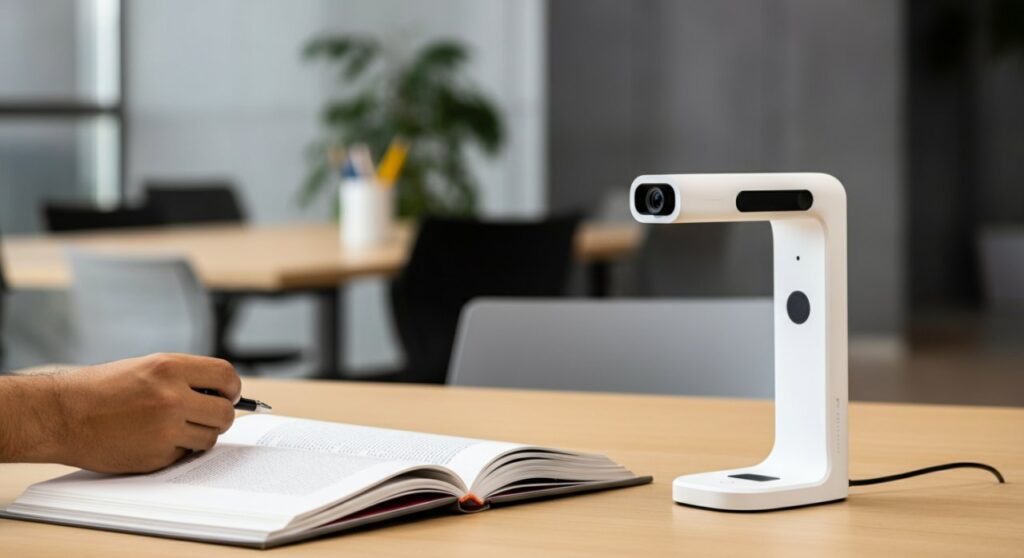
An Elmo projector, technically known as a document camera or visual presenter, is a high-resolution imaging device used to project live images of physical documents, 3D objects, or microscopic items onto a screen or interactive whiteboard. Often mistakenly called a “projector” because it is a key component of the projection ecosystem, an Elmo allows presenters to share real-time demonstrations with large audiences, making it a staple in modern classrooms and corporate boardrooms.
TL;DR: Quick Summary
- What it is: A specialized camera that captures and displays physical objects in real-time.
- Primary use: Educational instruction, legal evidence presentation, and collaborative business meetings.
- Why use one: It provides superior visual engagement, allows for tactile demonstrations, and eliminates the need for expensive, static slide decks.
- Key benefit: High-definition clarity and interactive annotation capabilities.
Understanding the Technology: What Is an Elmo Projector?
At its core, what is an elmo projector if not a bridge between the physical and digital worlds? Unlike a standard laptop presentation, an Elmo document camera uses a high-powered lens mounted on an adjustable arm to capture high-definition video of anything placed beneath it.
Many users confuse these with standard overhead projectors (the old-school transparent film machines). However, modern Elmo units are digital powerhouses. They connect via HDMI, USB, or Wi-Fi to displays, meaning you don’t need physical transparencies anymore.
Key Components of an Elmo Unit
- Imaging Sensor: Captures high-resolution video (often 4K).
- Flexible Gooseneck: Allows you to position the lens at any angle for 360-degree views.
- Internal LED Lighting: Ensures objects are illuminated without glare.
- Connectivity Ports: HDMI, VGA, and USB for seamless integration with Smartboards or monitors.
How to Set Up Your Elmo Projector for Success
Getting started with an Elmo projector is straightforward, but optimizing the setup ensures your audience sees exactly what you intend. Whether you are in a lecture hall or a conference room, follow these steps.
Step-by-Step Installation Guide
- Placement: Place the Elmo unit on a flat, stable surface where you intend to display your objects.
- Cable Connection: Connect the HDMI or USB cable from the “Output” port of the camera to the “Input” port of your projector or monitor.
- Powering On: Connect the power adapter to a stable power source and press the power button on the camera base.
- Auto-Focus Check: Place a test document underneath. The device should auto-focus instantly. If the image is blurry, use the manual zoom/focus dial on the camera head.
- Software Sync: If using a USB connection to a PC, install the manufacturer’s software to enable recording and screen capturing.
Comparison: Elmo vs. Traditional Presentation Methods
Understanding what is an elmo projector is easier when you see how it stacks up against older or alternative technology. The table below outlines why professional presenters prefer document cameras over standard methods.
| Feature | Elmo Document Camera | Standard Overhead Projector | Laptop/Slideshows |
|---|---|---|---|
| Object Display | Real-time 3D objects | 2D Transparencies only | None |
| Digital Integration | High (HDMI/USB/Wi-Fi) | Low (Analog) | High (Software) |
| Flexibility | High (Adjustable neck) | None (Fixed lens) | None |
| Visual Quality | 4K / HD Digital | Low / Blurred | High Digital |
Expert Tips for Enhancing Engagement
In my professional experience, the biggest mistake people make with an Elmo is treating it like a static scanner. To maximize impact, use it to create live demonstrations.
- Manipulate 3D Objects: Don’t just show a photo of a product; rotate the actual item under the lens to show its texture and scale.
- Annotate on the Fly: Many Elmo models allow you to connect a mouse or interactive pen to draw directly over the live feed.
- Microscopic Detail: Use the macro zoom feature to show students or colleagues tiny details that would otherwise be invisible to the naked eye.
- Record Your Sessions: Use the recording function to save your demonstration as a video file for later distribution.
Frequently Asked Questions (FAQs)
Does an Elmo projector need a separate screen?
Yes, the Elmo acts as the camera, not the display. You still need a projector, television, or interactive whiteboard to act as the screen for your audience to see the image.
Is an Elmo projector compatible with Mac and PC?
Most modern Elmo document cameras are “plug-and-play” with both macOS and Windows. By connecting via USB, your computer will recognize the device as a standard webcam in apps like Zoom, Teams, or Google Meet.
Can I use an Elmo projector for video conferencing?
Absolutely. Because they connect via USB, they function perfectly as a high-quality “second camera” during video calls to share handwritten notes or physical objects with remote participants.
Why is the image flickering on my screen?
Flickering is usually caused by the “flicker reduction” setting not matching the power frequency of your region (usually 50Hz or 60Hz). Check your Elmo settings menu to toggle this frequency for a stable, clear image.









