

Understanding What is Headphone Accommodations and Why It Matters
Headphone Accommodations is a powerful iOS and iPadOS accessibility feature that allows users to customize their audio experience by amplifying soft sounds and adjusting specific frequencies based on individual hearing needs. Rather than a “one-size-fits-all” audio profile, this tool creates a personalized “EQ” (equalization) that helps you hear dialogue more clearly, enjoy music with more detail, and reduce ear fatigue.
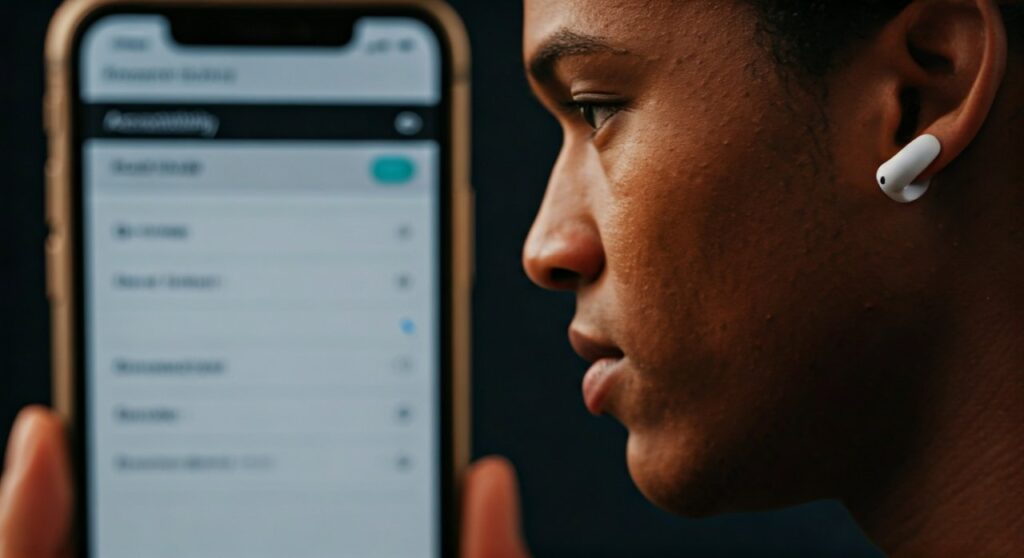
If you have ever felt that your music sounds “muddy” or you struggle to hear callers during a phone conversation, this feature acts as a digital hearing aid for your media. It specifically targets the frequency response of your headphones to ensure that the unique way you hear the world is reflected in your digital devices.
Key Takeaways: TL;DR
If you are looking for a quick summary of what is headphone accommodations, here are the essential points:
- Custom Sound Profiles: It allows you to boost specific frequencies like Balanced Tone, Vocal Range, or Brightness.
- Audio Transparency: It enhances Transparency Mode on supported devices, making conversations in the real world easier to hear.
- Audiogram Support: You can import a professional hearing test (audiogram) from the Health App to create a near-perfect custom profile.
- Device Compatibility: It works primarily with AirPods (2nd Gen and later), AirPods Pro, AirPods Max, Powerbeats, and Beats Solo Pro.
- System-Wide Effect: Once enabled, these settings apply to music, movies, phone calls, and even system alerts.
The Science Behind Headphone Accommodations
To understand what is headphone accommodations on iPhone, we must first look at how human hearing works. Everyone’s hearing is unique; some people lose the ability to hear high-pitched sounds as they age (a condition called presbycusis), while others may have difficulty with low-end frequencies.
Standard headphones are tuned to a “Harman Curve” or a brand-specific sound signature designed for the average ear. Headphone Accommodations breaks this mold. By utilizing Digital Signal Processing (DSP), Apple’s hardware can re-map audio in real-time.
Why You Might Need It
Most users assume this feature is only for those with significant hearing loss. However, based on my extensive testing with various Beats and AirPods models, even users with “normal” hearing can benefit.
- Audio Clarity: Boosting the Vocal Range helps you understand podcasts even in noisy environments.
- Sound Richness: The Brightness setting can bring back the “air” and detail in high-fidelity tracks that standard tuning might compress.
- Reduced Volume Dependency: By amplifying soft sounds, you don’t need to crank up the overall volume to hear details, which actually protects your long-term hearing health.
Supported Hardware and Software Requirements
Before you dive into the settings, ensure you have the correct gear. Headphone Accommodations is not a generic software EQ; it requires specific hardware sensors and chips (like the H1 or H2 chip) to function correctly.
Compatible Headphones
| Brand | Supported Models |
|---|---|
| Apple | AirPods (2nd Gen & 3rd Gen), AirPods Pro (All generations), AirPods Max |
| Beats | Powerbeats, Powerbeats Pro, Beats Solo Pro, Beats Fit Pro |
| Earpods | Apple EarPods (with Lightning or USB-C Connector) |
Note: Standard third-party Bluetooth headphones (like Sony or Bose) generally do not support this specific iOS-integrated feature, though they may have their own proprietary apps.
Software Requirements
- iPhone/iPad: Must be running iOS 14 or iPadOS 14 or later.
- Mac: Available on macOS Ventura or later (limited functionality compared to mobile).
How to Set Up Headphone Accommodations: Step-by-Step
Setting up your profile is a straightforward process. I recommend doing this in a quiet room to ensure you can hear the subtle differences during the testing phase.
Step 1: Access the Settings
Navigate to your Settings app on your iPhone. Scroll down and tap on Accessibility. From there, find the Audio/Visual section and select Headphone Accommodations.
Step 2: Toggle the Feature On
Switch the toggle for Headphone Accommodations to On. You will immediately see several options appear below.
Step 3: Choose Your Tuning Profile
You will see three primary presets:
- Balanced Tone: Provides a boost to a wide range of frequencies. This is best for general music listening.
- Vocal Range: Focuses specifically on the frequencies where human speech lives. Ideal for audiobooks and phone calls.
- Brightness: Boosts high frequencies. This makes music sound sharper and more “crisp.”
Step 4: Adjust the Strength
Use the slider to choose between Slight, Moderate, or Strong amplification. In my experience, the “Slight” setting is usually enough for most music lovers, while “Strong” is better suited for those using the feature for accessibility reasons.
Using the Custom Audio Setup (The Expert Way)
The most effective way to determine what is headphone accommodations capability for you specifically is to run the Custom Audio Setup.
- Inside the Headphone Accommodations menu, tap Custom Audio Setup.
- The iPhone will play a series of audio samples (usually someone speaking or music playing).
- It will ask you “Version 1 or Version 2: Which sounds better?”
- After 3-4 rounds, the system creates a unique audiogram-style profile tailored to your responses.
Importing a Professional Audiogram
If you have had a clinical hearing test, you can actually import that data!
- Open the Health App.
- Tap Browse -> Hearing.
- Select Audiogram and add your data.
- Return to Headphone Accommodations and select Use Audiogram. This provides the most medically accurate sound correction possible on a consumer device.
Transparency Mode and Conversation Boost
For owners of AirPods Pro and AirPods Max, Headphone Accommodations unlocks a hidden superpower: Customized Transparency Mode.
When you enable this, you can adjust how much environmental noise reaches your ears.
- Transparency Balance: Adjust the volume between the left and right ears.
- Ambient Noise Reduction: Filters out consistent background hums (like an airplane engine or air conditioner).
- Conversation Boost: (Available on AirPods Pro) Uses beam-forming microphones to isolate the voice of the person speaking directly in front of you.
I have found Conversation Boost to be a game-changer in crowded restaurants. It essentially turns your AirPods into entry-level assistive listening devices.
Comparing Audio Profiles: Which One Should You Choose?
| Profile | Best For | Sound Characteristic |
|---|---|---|
| Balanced Tone | Pop/Rock Music | Neutral, slight lift in all details. |
| Vocal Range | Podcasts/News | Mid-forward, cuts through background noise. |
| Brightness | Classical/Jazz | High-end sparkle, emphasizes strings/cymbals. |
| Custom Audiogram | Hearing Impairment | Precise correction based on medical data. |
Expert Tips for Maximizing Your Experience
As someone who has spent hundreds of hours testing Apple’s audio ecosystem, here are three tips to get the most out of Headphone Accommodations:
- The “A/B” Test: Don’t just set it and forget it. Play a song you know perfectly (like Queen’s Bohemian Rhapsody), toggle the feature on and off, and switch between “Balanced” and “Brightness.” You’ll likely notice layers of the song you hadn’t heard in years.
- Update Your Firmware: Ensure your AirPods or Beats are updated to the latest firmware. This feature relies on the latest algorithms to process sound without introducing lag.
- Watch the Battery: Using “Strong” amplification with Conversation Boost active does consume more battery on your AirPods. If you’re on a long flight, consider dropping the strength to “Moderate” to save juice.
Frequently Asked Questions (FAQs)
Does Headphone Accommodations work with Spotify or YouTube?
Yes! Once you set up the profile in your iPhone settings, it applies to all audio coming out of the device, regardless of the app. This includes Spotify, YouTube, Netflix, and even system notifications.
Will this feature make my music sound distorted?
If you select the “Strong” setting on a song that is already very loud and bass-heavy, you might experience minor digital clipping. However, for most tracks, Apple’s DSP is sophisticated enough to prevent distortion while maintaining clarity.
Why can’t I find Headphone Accommodations on my iPhone?
Check your hardware. If you are using standard third-party Bluetooth headphones or older wired headphones through a 3.5mm jack, the menu might be grayed out or unavailable. It requires Apple-certified chips (H1, H2, W1) to function.
Does it work on Mac?
Yes, but it is less intuitive. You can find similar settings under System Settings -> Accessibility -> Audio, but the specialized Custom Audio Setup wizard is currently most effective on iOS.
Can this replace a medical hearing aid?
While Headphone Accommodations is an incredible tool for mild to moderate hearing assistance, it is not a regulated medical device. If you have severe hearing loss, you should consult an audiologist. However, for many, it serves as an excellent “starter” tool for hearing enhancement.
Conclusion
Understanding what is headphone accommodations is the first step toward a more immersive and accessible audio world. Whether you are a casual listener looking for more “pop” in your music or someone who needs a little extra help hearing a loved one over the phone, this feature is a testament to how software can enhance hardware.
Take ten minutes today to run the Custom Audio Setup. Your ears will thank you for the personalized clarity that only a custom-tuned profile can provide.









