

Understanding What Is Keystone on a Projector
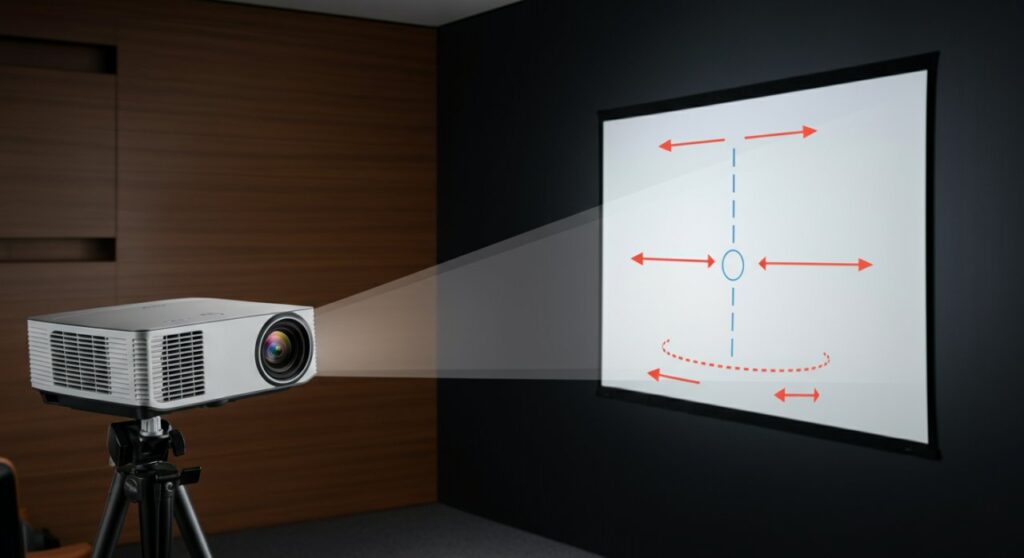
Have you ever set up a projector, only to realize the image looks like a trapezoid instead of a perfect rectangle? That frustrating distortion happens when your projector isn’t perfectly perpendicular to the screen, which is exactly what is keystone on a projector. In short, keystone correction is a digital or optical feature designed to reshape your image back into a square, ensuring your movies and presentations look professional regardless of the projector’s placement angle.
TL;DR: Quick Summary
- What it does: Fixes trapezoidal image distortion caused by off-center projector placement.
- How it works: It digitally compresses or stretches parts of the image to create a square frame.
- Best practice: Always try to physically align your projector first, as keystone correction can slightly reduce image quality.
- Types: Vertical (common) and Horizontal (found in higher-end models).
Why Keystone Correction Matters for Your Setup
When you ask what is keystone correction in a projector, you are really asking about image geometry. Without this feature, mounting a projector in a tight space or off to the side would result in a warped, unwatchable picture.
The Problem: Trapezoidal Distortion
When a projector sits at an angle relative to the screen, the light travels different distances to reach the top and bottom (or sides) of the display area. This causes the side further away to appear wider, creating a “keystone” shape.
The Solution: Keystone Adjustment
Most modern devices offer keystone correction on a projector to counteract this. By adjusting these settings, you essentially tell the internal software to compensate for the angle, forcing the image back into a standard 16:9 or 4:3 aspect ratio.
How to Properly Use Keystone Correction
If you are wondering what is keystone correction on a projector in a practical sense, it is usually a simple menu adjustment. Here is how to get the perfect image every time:
- Physical Alignment First: Before touching any settings, try to place your projector at the same height as the center of your screen. Physical alignment is always superior to digital correction.
- Access the Menu: Use your remote to navigate to the “Image” or “Geometry” settings menu.
- Adjust Vertical/Horizontal: Use the slider or arrow keys to stretch or shrink the corners until the image is perfectly rectangular.
- Check Focus: Sometimes, aggressive correction can lead to uneven focus. If this happens, try moving the projector slightly closer to the center of the screen’s axis.
Comparison: Physical vs. Digital Correction
| Feature | Physical Alignment | Digital Keystone Correction |
|---|---|---|
| Image Quality | Perfect (Native Resolution) | Slight Loss (Interpolation) |
| Setup Difficulty | Higher (Requires mounts) | Very Easy (Remote control) |
| Versatility | Limited by room layout | High (Works from almost any angle) |
Common Types of Keystone Correction
Not all projectors offer the same level of flexibility. Understanding the variations is key to knowing what is keystone correction projector capability you actually need for your specific room.
Vertical Keystone
This is the most common type found in almost every entry-level projector. It fixes distortion caused by tilting the projector up or down.
Horizontal Keystone
Found in more advanced, professional-grade models. This allows you to place the projector to the left or right of the screen (side-angle projection) while maintaining a perfect rectangle.
Auto-Keystone
Many portable and smart projectors now include Auto-Keystone. Sensors detect the angle of the device and automatically snap the image into a perfect rectangle, saving you the trouble of manual tweaking.
Pro-Tips for Best Image Quality
Even though what is keystone on a projector is a life-saver for difficult rooms, it is a tool meant to be used sparingly. My experience has shown that excessive digital correction often leads to:
- Visible Pixels: Extreme correction can make edges look jagged.
- Resolution Loss: Because the projector is effectively “cutting” parts of its matrix to create a square, you lose actual display pixels.
Expert Advice: If you are building a permanent home theater, skip the digital keystone settings. Invest in a high-quality ceiling mount or a short-throw projector to ensure your image hits the screen at the correct angle naturally.
Frequently Asked Questions
Does keystone correction reduce image quality?
Yes, it can. Because digital keystone works by manipulating pixels, extreme adjustments may result in a softer image or noticeable jagged edges.
What is the difference between keystone and lens shift?
Lens shift physically moves the lens assembly to position the image without losing resolution. Keystone correction is a digital process that creates a square shape through image processing.
Can I use keystone correction on any projector?
Most modern projectors include it, but very cheap or very old models might not. Always check the specifications if you plan on side-angle projection.
Is auto-keystone better than manual?
Auto-keystone is faster and perfect for casual users. However, manual control is generally better for precision if you are setting up a permanent, high-end display.









