

Understanding Why You Can Hear Your Mic Through Your Headphones
You can hear your mic through your headphones primarily because a feature called “Listen to this device” is enabled in Windows or your headset has “Sidetone” activated. To fix this instantly, go to your Sound Control Panel, select your microphone properties, and uncheck “Listen to this device” under the Listen tab.
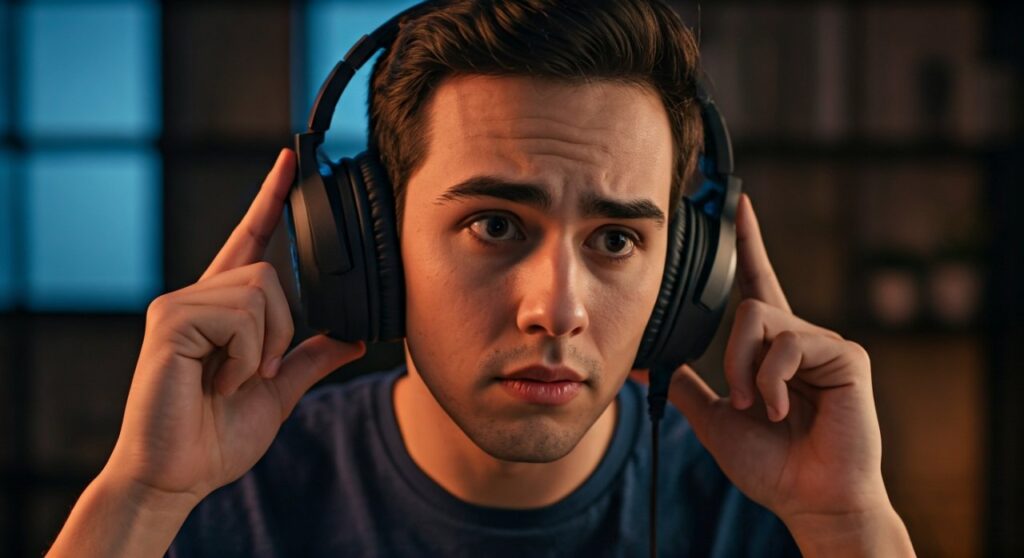
Hearing your own voice while gaming or on a call is a common issue caused by software settings, driver configurations, or hardware features designed for monitoring. While professional broadcasters use this for zero-latency monitoring, for the average user, it results in a distracting echo or a constant background hiss.
This guide provides a comprehensive, step-by-step walkthrough to identify the root cause and disable this feedback loop across all major platforms and devices.
Key Takeaways: How to Stop Hearing Yourself
If you are in a rush, here are the most effective solutions to stop hearing your microphone playback:
- Windows Settings: Disable “Listen to this device” in the Recording tab of the Sound Control Panel.
- Gaming Software: Check for a “Sidetone” slider in apps like Logitech G Hub, Razer Synapse, or SteelSeries Engine and turn it to zero.
- Realtek Audio: Open the Realtek Audio Console and ensure the microphone playback is muted in the “Speakers” or “Output” section.
- Hardware Dials: Look for a physical “Monitor” or “Sidetone” wheel on the earcups of your headset.
- DAW/Recording Apps: Turn off “Input Monitoring” in software like OBS, Audacity, or Ableton Live.
Step 1: Disabling “Listen to This Device” in Windows 10 & 11
The most frequent culprit for why can i hear my mic through my headphones is a native Windows setting intended for testing your microphone levels. When this is on, Windows loops the audio input directly back to your primary output.
How to Fix via Sound Control Panel:
- Press the Windows Key + R, type
mmsys.cpl, and hit Enter. - Navigate to the Recording tab at the top of the window.
- Right-click on your Active Microphone (indicated by a green checkmark) and select Properties.
- Click on the Listen tab.
- Uncheck the box that says “Listen to this device”.
- Click Apply and then OK.
If the box was already unchecked and you still hear yourself, the issue likely resides in your sound card’s proprietary driver or your headset’s specialized software.
Step 2: Adjusting Sidetone in Gaming Headset Software
Modern gaming headsets from brands like HyperX, Logitech, and Razer often include a feature called Sidetone. This is designed to play a small amount of your own voice back into the earcups so you don’t end up shouting during intense gameplay.
Popular Brand Configurations:
- Logitech G Hub: Select your headset -> Acoustics -> Find the Sidetone slider and move it to 0.
- Razer Synapse: Go to the Audio tab -> Select Mic -> Adjust the Sidetone slider to the left.
- SteelSeries GG: Open Engine -> Select your device -> Locate the Sidetone dial in the settings panel and disable it.
- Corsair iCUE: Select your headset on the dashboard -> Locate the Mic Settings column on the right -> Lower the Sidetone slider.
Expert Insight: I’ve found that many users accidentally trigger Sidetone via physical shortcuts. For example, on some Turtle Beach headsets, a secondary scroll wheel on the earcup controls Sidetone independently of the master volume. Always check your physical hardware for these extra dials.
Step 3: Fixing Realtek Audio Console Monitoring
If you are using a 3.5mm jack instead of a USB connection, your motherboard’s Realtek High Definition Audio drivers might be the reason why can i hear my mic through my headphones.
Troubleshooting Realtek Settings:
- Open the Realtek Audio Console (search for it in the Start menu).
- Click on Device Advanced Settings in the bottom left.
- Look for the Playback Devices section.
- If you see a slider for “Microphone” or “Front Pink In” under your Speakers/Headphones output, click the Mute icon.
- Alternatively, go to the Recording Device section and ensure “Acoustic Echo Cancellation” is turned on to help suppress feedback loops.
Step 4: Checking Communication Apps (Discord, Zoom, Teams)
Sometimes the “echo” isn’t coming from your OS, but from the application you are using. If you only hear your mic through your headphones during calls, the settings within the app are the priority.
Discord Settings:
- Navigate to User Settings (the gear icon).
- Go to Voice & Video.
- Scroll down to the Mic Test section. If you clicked “Let’s Check,” you will hear yourself until you stop the test.
- Ensure Echo Cancellation and Noise Suppression (Krisp) are enabled to prevent your mic from picking up headphone bleed.
Zoom/Teams:
- Check if you have “Original Sound” enabled. In some configurations, this bypasses the app’s natural echo cancellation, making your voice loop back if your volume is too high.
Comparing Software vs. Hardware Monitoring
| Feature | Source | Latency | Common Use Case |
|---|---|---|---|
| Windows “Listen” | OS Settings | High (Laggy) | Testing mic quality |
| Sidetone | Headset Firmware | Zero (Real-time) | Natural speaking in closed-back cups |
| Direct Monitoring | Audio Interface | Zero (Real-time) | Professional music recording |
| In-Game Loop | Game Engine | Variable | Voice chat feedback/debugging |
Step 5: Advanced Troubleshooting for Professional Audio
If you are an aspiring streamer or musician using an Audio Interface (like a Focusrite Scarlett or PreSonus AudioBox), the reason you hear yourself is likely a hardware switch.
Direct Monitoring Switch
Most interfaces have a button or knob labeled “Direct Monitor”.
- If this is “On” or turned toward “Input,” the hardware sends the mic signal directly to your headphones before it even reaches your computer.
- Solution: Turn this knob toward “Playback” or toggle the switch to “Off” to only hear audio coming back from your PC.
DAW Monitoring
If you use software like OBS Studio, you might have enabled “Monitor and Output” in the Advanced Audio Properties.
- Right-click anywhere in the Audio Mixer in OBS.
- Select Advanced Audio Properties.
- Find your Microphone and set Audio Monitoring to “Monitor Off”.
Why Is This Happening? The Physics of Audio Feedback
Understanding why can i hear my mic through my headphones often comes down to the design of the headphones themselves.
Closed-back headphones create a seal around your ears. This prevents sound from escaping but also makes it hard to hear your own voice naturally. This phenomenon, known as the Occlusion Effect, makes your voice sound “boomy” or muffled inside your head. Manufacturers created Sidetone specifically to combat this, allowing a digital version of your voice to enter the earcups so you can gauge your own volume.
However, if there is a delay (latency) in this playback, it becomes a psychological irritant. Software-based monitoring (like the Windows “Listen” setting) travels through the entire PC processing chain, creating a 50-200ms delay that makes it nearly impossible to speak without stuttering.
FAQs: Frequently Asked Questions
Why is there a delay when I hear my own voice?
The delay occurs because the audio signal has to be converted from analog to digital, processed by the Windows Audio Engine, and then converted back to analog for your headphones. This “software monitoring” is naturally slow. To hear yourself without a delay, you must use hardware-based Sidetone or an Audio Interface with Direct Monitoring.
Can a faulty cable cause me to hear my mic?
Yes. If your headphone/mic splitter cable is damaged or poorly shielded, “crosstalk” can occur. This is an electrical leak where the signal from the microphone wire jumps to the headphone wire. If disabling all software settings doesn’t work, try a different 3.5mm Y-splitter or a USB sound card adapter.
Why do I hear my mic even when it’s muted?
If you hear “white noise” or your environment through your headphones even when the mic is muted, you likely have Sidetone enabled at the hardware level. Many headsets keep the monitor circuit open even if the software mute is active. Turn down the physical Sidetone dial on the headset.
Is hearing myself in my headphones bad for the hardware?
No, it is not harmful to your equipment. It is simply a routing preference. However, if the volume is high enough to cause a screeching feedback loop, it could potentially damage the small drivers in your headphones or your hearing.
How do I stop my mic from picking up my headphone sound?
This is slightly different from hearing yourself; it’s called “bleed.” To stop this, lower your overall volume, use closed-back headphones, and enable Noise Suppression in your recording software.









