

Common Reasons Why Your iPad Is Stuck in Headphone Mode
An iPad stuck in headphone mode usually occurs because the device’s software incorrectly detects a connection in the 3.5mm jack, Lightning port, or USB-C port. This is typically caused by compacted lint, moisture/liquid damage, or a temporary software glitch within iPadOS.
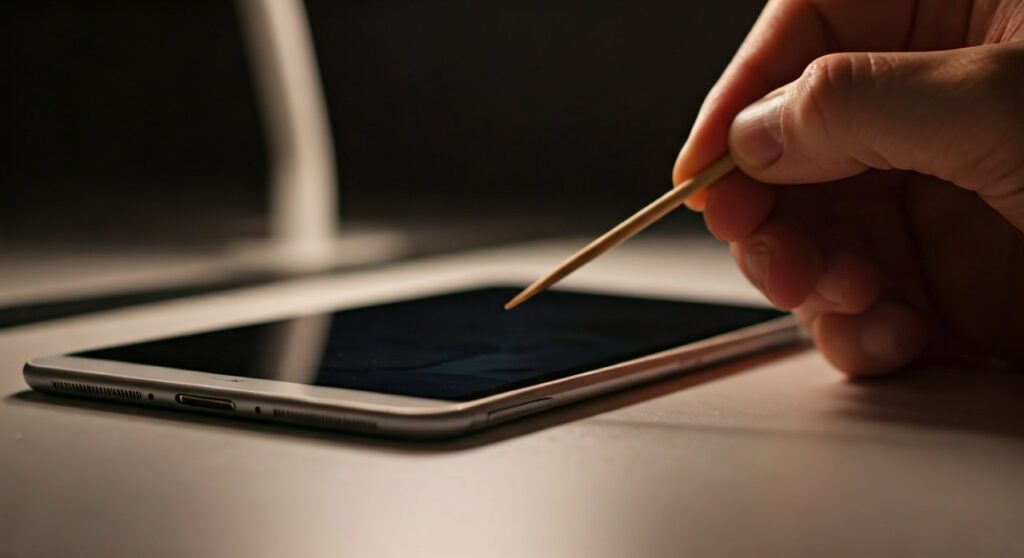
If you are staring at a volume bar that says “Headphones” but nothing is plugged in, you are dealing with a classic hardware-software disconnect. Based on years of mobile repair experience, the most common culprit is a tiny piece of conductive debris inside the charging or audio port. This debris tricks the iPad into thinking a circuit is closed, triggering the audio-routing software to bypass the external speakers.
Key Takeaways: Quick Fixes for iPad Audio Issues
Before diving into the technical deep-dive, here is a summary of the most effective solutions:
- Physical Cleaning: Use compressed air or a non-metallic toothpick to remove lint from the port.
- Toggle Bluetooth: Disconnect any “phantom” wireless headphones in Settings.
- Force Restart: Refresh the iPadOS kernel to clear minor software bugs.
- Dry the Port: If moisture is suspected, let the device air-dry for at least 24 hours (avoid rice).
- Software Update: Ensure your iPad is running the latest version of iPadOS to fix known audio routing bugs.
Detailed Troubleshooting: Why Is My iPad Stuck in Headphone Mode?
Understanding the “why” is the first step to a permanent fix. Unlike older analog devices, modern iPads use sophisticated sensors to detect audio peripherals. When these sensors fail, the device defaults to the safest output: headphones.
Debris and Lint Accumulation
This is the “Number 1” cause for iPads featuring a 3.5mm headphone jack or the Lightning port. Over time, pocket lint or dust from a bag enters the port. When you plug in a cable, you compress this lint into a hard “cake” at the bottom. This material can be slightly conductive or physically hold the internal detection pins in the “plugged-in” position.
Moisture and Corrosion
Even a single drop of liquid can cause a short circuit in the delicate pins of a USB-C or Lightning port. This doesn’t just happen from dropping the iPad in water; high humidity or steam from a bathroom can cause enough condensation to trigger the headphone sensor.
Software Logic Errors
Sometimes, the iPadOS audio controller simply crashes. This happens most often when disconnecting headphones while a high-resource app (like a game or video editor) is running. The system fails to register the “unplug” event and keeps the audio path routed to the port.
Damaged Port Pins
If you frequently “wiggle” your charger or headphone plug, you may have bent the internal pins. If a ground pin touches a data pin, the iPad may interpret this as a connected headset.
Step-by-Step Guide to Fixing Your iPad
Follow these steps in order. We start with the least invasive methods and move toward advanced technical repairs.
Step 1: Perform a Force Restart
A standard “Slide to Power Off” might not clear the audio cache. A Force Restart reinitializes the hardware drivers.
- For iPads without a Home Button: Press and quickly release Volume Up. Press and quickly release Volume Down. Press and hold the Top Button until the Apple Logo appears.
- For iPads with a Home Button: Press and hold both the Home and Top (Power) buttons simultaneously until you see the Apple Logo.
Step 2: Inspect and Clean the Port
Warning: Never use metal objects like needles or paperclips. These can permanently short-circuit the iPad logic board.
- Use a Flashlight: Shine a light into the port. If you don’t see the shiny metallic bottom of the port, there is debris inside.
- Compressed Air: Use short bursts of air to dislodge loose dust.
- The Toothpick Method: Gently use a wooden or plastic toothpick to “hook” out lint. Focus on the corners where debris likes to hide.
- Isopropyl Alcohol: Dampen a tiny bit of cotton (from a Q-tip) with 90% Isopropyl Alcohol and gently wipe the internal contacts. Let it dry for 5 minutes.
Step 3: Manage Bluetooth Connections
Sometimes, your iPad isn’t stuck in “wired” headphone mode, but is actually connected to a pair of AirPods or a Bluetooth speaker in another room.
- Go to Settings > Bluetooth.
- Toggle Bluetooth OFF.
- Check if the volume bar now says “Volume” instead of “Headphones.”
Step 4: The “Headphone Plug” Trick
This sounds counter-intuitive, but it works by “resetting” the physical switch inside the jack.
- Insert your headphones into the iPad.
- Play a song for 10 seconds.
- Abruptly pull the plug out.
- Repeat this 3 to 5 times. This can sometimes “unstick” a mechanical sensor that is physically jammed.
| Method | Success Rate | Risk Level | Best For |
|---|---|---|---|
| Force Restart | 30% | Zero | Software glitches |
| Lint Removal | 60% | Low | Older iPads/Physical debris |
| Bluetooth Toggle | 15% | Zero | Wireless interference |
| DFU Restore | 10% | Medium | Deep OS corruption |
| Professional Repair | 99% | N/A | Hardware damage |
Why is My iPad Stuck in Headphone Mode After Water Exposure?
If your iPad was recently near water, the “headphone mode” is a warning sign of a potential short circuit. Water conducts electricity across the pins of the port, mimicking the presence of a headphone chip.
What NOT to do:
- The Rice Myth: Do NOT put your iPad in a bag of rice. Rice dust can enter the port and create a “paste” that hardens, making the problem worse.
- Hairdryers: High heat can melt the adhesive holding the iPad screen in place or damage the LCD pixels.
The Expert Solution for Water:
- Power Down: Turn the device off immediately to prevent electrical shorts.
- Silica Gel: Place the iPad in a sealed container with several Silica Gel packets (the “Do Not Eat” packets found in shoe boxes).
- Time: Wait at least 24 to 48 hours before turning it back on.
Advanced Software Fix: Using DFU Mode
If you’ve cleaned the port and checked for water but the iPad is still stuck, the issue may be deep within the iPadOS firmware. A DFU (Device Firmware Update) restore is the deepest type of reset possible.
Note: This will erase all data on your device. Ensure you have an iCloud or iTunes backup.
- Connect your iPad to a computer.
- Follow the button sequence for your specific model to enter DFU Mode (the screen will remain black, but iTunes or Finder will report a device in “Recovery Mode”).
- Select Restore iPad.
- This will download a fresh copy of iPadOS and reinstall it, bypassing any corrupted audio drivers.
When to Contact Apple Support
If none of the above steps work, you are likely facing a Hardware Component Failure. This happens when the Audio IC (Integrated Circuit) on the motherboard fails or the physical port housing is cracked.
- Warranty Check: If your iPad is under AppleCare+, this repair is often covered or significantly discounted.
- Third-Party Repair: For older models, a local technician can replace the charging port/headphone jack assembly for a fraction of the cost of a new device.
Frequently Asked Questions (FAQs)
Can a software update fix an iPad stuck in headphone mode?
Yes. Apple occasionally releases patches for iPadOS that address “Audio Routing” bugs. Always check Settings > General > Software Update to ensure you are on the latest build.
Why does my iPad think headphones are plugged in when I use USB-C?
USB-C is a smart port. It uses “Handshake” protocols to detect devices. If there is moisture or a faulty adapter, the CC pins (Configuration Channel) may misidentify the power draw as an audio accessory.
How do I force my iPad to play through speakers?
You can try using the Control Center. Swipe down from the top-right corner, tap the AirPlay icon (the circles with a triangle) in the music widget, and manually select “iPad” or “Internal Speaker”. If the option is missing, the hardware sensor is overriding the software.
Is it safe to use a vacuum cleaner on my iPad port?
Generally, no. A vacuum can create Static Electricity, which is lethal to sensitive tablet components. Stick to Compressed Air or manual cleaning with a non-conductive tool.
Can a bad charging cable cause this?
Surprisingly, yes. If you are using a low-quality, non-MFi certified cable, it can cause an electrical bridge in the port that tricks the iPad into entering headphone mode. Try unplugging all accessories and restarting.









