

Troubleshooting the “Black Screen”: Why Is My Projector Not Working?
If you are asking why is my projector not working, the most common culprits are a disconnected power cable, an incorrect input source setting, or a depleted projector lamp. In most cases, the issue is not a hardware failure but a simple communication error between your device and the projector. Before you consider a replacement, ensure your HDMI cables are seated firmly and the lens cap has been removed.
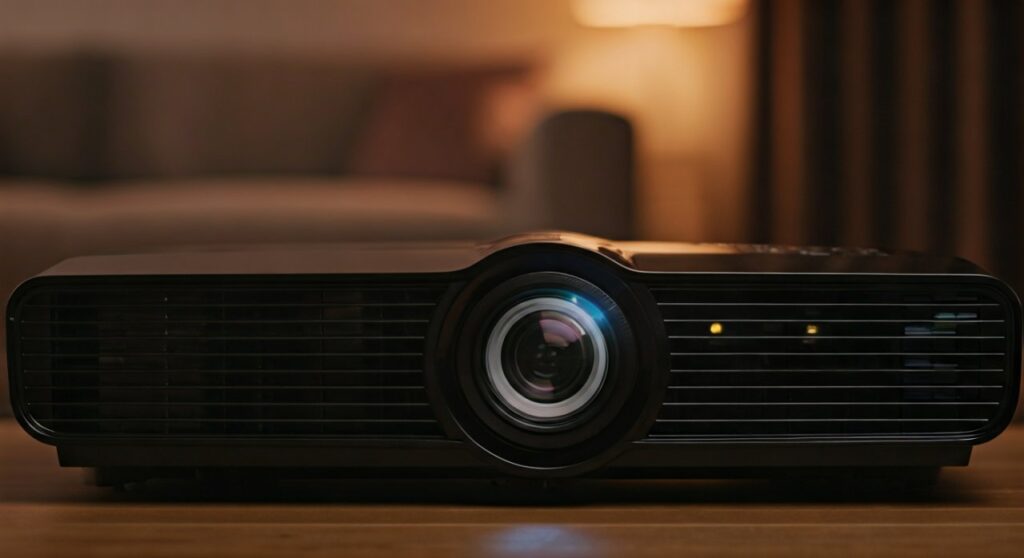
Getting a projector to display an image should be a “plug-and-play” experience, yet it often turns into a frustrating technical hurdle. Whether you are dealing with a No Signal message or a projector that refuses to power on, this guide provides a professional, step-by-step diagnostic framework used by AV technicians to restore your display in minutes.
Key Takeaways: Quick Fixes for Projector Issues
| Common Symptom | Most Likely Cause | Immediate Action |
|---|---|---|
| No Power / No Lights | Loose power cord or tripped breaker. | Check the plug and the physical “On/Off” switch on the back. |
| No Signal / Not Displaying | Wrong input source selected. | Press the Source or Input button on the remote. |
| Flashing Red/Orange Light | Overheating or lamp failure. | Clean the air filters and allow 30 minutes for cooling. |
| Blurry or Distorted Image | Focus or Keystone out of alignment. | Manually adjust the Focus Ring behind the lens. |
| Image is Dim | Lamp reaching end of life. | Check Lamp Hours in the system menu; replace if >3000 hrs. |
## Identifying Why Your Projector Is Not Displaying
The frustration of a blank screen often stems from a breakdown in the signal chain. If you are wondering why is my projector not displaying, you need to systematically check the connection from the source to the lens.
Check the Physical Connections
It sounds elementary, but loose cables account for nearly 40% of all troubleshooting calls. Ensure that the HDMI, VGA, or USB-C cable is pushed entirely into the port. I have often found that heavy-duty HDMI cables can sag over time, losing contact with the internal pins.
Verify the Input Source
Modern projectors from brands like Epson, BenQ, and Optoma often have multiple ports (HDMI 1, HDMI 2, Computer In). If your laptop is plugged into HDMI 2 but the projector is searching for HDMI 1, you will see a “No Signal” screen. Use the Input Select button to cycle through all available options.
The “Lens Cap” Oversight
It happens to the best of us. Ensure the physical lens cap or the internal electronic shutter (A/V Mute) is not closed. If you hear the fan running but see no light hitting the wall, the shutter is likely engaged.
## Step-by-Step Guide: Fixing a Projector That Won’t Turn On
When a projector remains completely dark with no indicator lights, the issue is related to the power delivery system. Follow these steps to diagnose the failure:
Step 1: Inspect the Power Supply
- Check the Main Switch: Many professional-grade projectors have a hard toggle switch near the power inlet. Ensure it is in the “On” position.
- Try a Different Outlet: Plug a different device (like a lamp) into the same outlet to verify the circuit hasn’t tripped.
- Test the Remote: If the physical buttons on the projector work but the remote doesn’t, your AAA batteries are likely dead.
Step 2: Decipher the Indicator Lights
Projectors communicate through a series of LED “blinks.” Look at the Power, Lamp, and Temp lights on the chassis.
- Solid Red: Usually indicates a fatal hardware error.
- Blinking Red: Often signifies that the projector is overheating.
- Blinking Orange: Usually means the projector is in “Standby” or “Cooling Down” mode. Do not unplug it until the fan stops.
Step 3: Reset the Internal Thermal Switch
If a projector gets too hot, it will trigger a thermal cut-off. Unplug the unit for at least 60 minutes. During this time, use a vacuum or compressed air to clear dust from the intake vents and air filters.
## Resolving “No Signal” and Connectivity Errors
If the power is on but why is my projector not displaying remains a mystery, the problem lies in the digital “handshake” between your computer and the projector.
Synchronizing Your Laptop (Windows & Mac)
Your computer might not know it is supposed to be sending a signal to an external display.
- Windows: Press Windows Key + P and select “Duplicate” or “Extend.”
- Mac: Go to System Settings > Displays and click the “+” icon or “Detect Displays.”
Managing HDMI Handshake Issues
HDMI Handshake errors occur when the encrypted HDCP (High-bandwidth Digital Content Protection) fails. To reset this:
- Turn off both the projector and the source device.
- Unplug the HDMI cable from both ends.
- Turn on the projector first, then the source device.
- Reconnect the HDMI cable.
Resolution Mismatch
If your laptop is outputting a 4K signal but you are using an older 720p projector, the projector may simply display a black screen or “Frequency Out of Range.” Manually lower your computer’s output resolution to 1080p or 720p to see if the image appears.
## Understanding Projector Lamp and Hardware Failures
Every traditional projector uses a bulb that has a finite lifespan. If you have ruled out cables and settings, the hardware itself might be at fault.
Determining if the Lamp is Blown
Most UHP (Ultra High Performance) lamps last between 2,000 and 5,000 hours. If you notice a “pop” sound followed by a total loss of light, the bulb has shattered.
- Symptom: The “Lamp” LED indicator turns red.
- Verification: Remove the lamp housing (usually a small door secured by one screw) and check for blackened glass or broken filaments.
- Action: Replace the lamp with an OEM (Original Equipment Manufacturer) module. Cheap third-party bulbs can damage the projector’s ballast.
Dealing with Overheating
Projectors generate immense heat. If the fans are clogged with dust, the unit will shut down automatically to prevent the LCD panels or DLP chip from melting.
- Pro Tip: Always leave at least 50cm (20 inches) of clearance around the exhaust vents.
- Maintenance: Clean your filters every 3 months if the projector is ceiling-mounted in a high-traffic area.
## Common Image Quality Problems and Solutions
Sometimes the projector is “working,” but the image quality makes it unusable. Here is how to fine-tune the display:
Fix Blurry Images
If the center is sharp but the edges are blurry, your projector is likely not perpendicular to the screen.
- Adjust the Focus Ring for clarity.
- Use the Zoom Lever to fit the screen without moving the physical unit.
Correcting “Keystone” Distortion
If the image looks like a trapezoid (wider at the top than the bottom), you need to adjust the Keystone Correction. While digital keystone is convenient, it can degrade image quality. It is always better to physically level the projector.
Strange Colors or Dots
- Purple/Yellow Tints: This indicates a failing LCD panel or a loose VGA pin.
- White/Black Dots: On DLP projectors, this is a sign of a dying DMD chip (the tiny mirrors are stuck). This usually requires a professional repair.
## Expert Tips for Long-Term Projector Health
Based on my years of experience managing AV for large-scale events, following these “golden rules” will prevent most “not working” scenarios:
- Never Unplug Directly: Always use the power button and let the fan run until it stops. Unplugging a hot bulb causes the heat to “soak” into the electronics, shortening their life.
- Use High-Quality Cables: For runs over 15 feet, use Active HDMI cables or HDMI over Ethernet (HDBaseT) to prevent signal dropouts.
- Check “Eco Mode”: If the image is too dim, check if “Eco Mode” is enabled. While it saves lamp life, it reduces brightness by up to 30%.
- Firmware Updates: Modern smart projectors from Samsung or LG require occasional firmware updates to stay compatible with new streaming apps and devices.
## Frequently Asked Questions (FAQs)
Why does my projector say “No Signal” when it’s plugged in?
This is usually caused by the projector being set to the wrong Input Source or the laptop not being set to “Mirror/Extend” mode. Try pressing Windows + P on your PC or checking the HDMI port number on the back of the projector to match the setting on the screen.
How do I know if my projector bulb is burnt out?
Look for a dedicated Lamp LED on the projector body. If it is glowing red or flashing, the bulb is likely dead. Other signs include a very dim image, flickering, or a sudden “pop” followed by no light production.
Why is my projector turning off by itself after a few minutes?
The most common cause is overheating. If the internal sensors detect too much heat, the unit shuts down for safety. Check for dust in the air filters and ensure the fans are spinning. Another possibility is a “Sleep Timer” being active in the settings menu.
Why is the image on my projector upside down?
This happens when a projector is ceiling-mounted but the software is still in “Front/Table” mode. Go into the System Menu, look for Projector Installation or Orientation, and change it to Front Ceiling or Rear Ceiling.
Can I fix a projector that has a blue or yellow tint?
A color tint usually suggests a cable issue or a failing internal component. First, replace the HDMI cable. If the tint persists, an LCD panel (on 3LCD projectors) or the Color Wheel (on DLP projectors) may be failing, which requires professional servicing.









