

Why Won’t My Sony Headphones Show Up on Bluetooth?
Your Sony headphones typically won’t show up on Bluetooth because they are not in active Pairing Mode, are currently connected to another device via Multi-point, or have a low battery level. Most users fail to hold the power button long enough (usually 7 seconds) to trigger the discovery phase, leaving the headphones invisible to your smartphone or laptop.
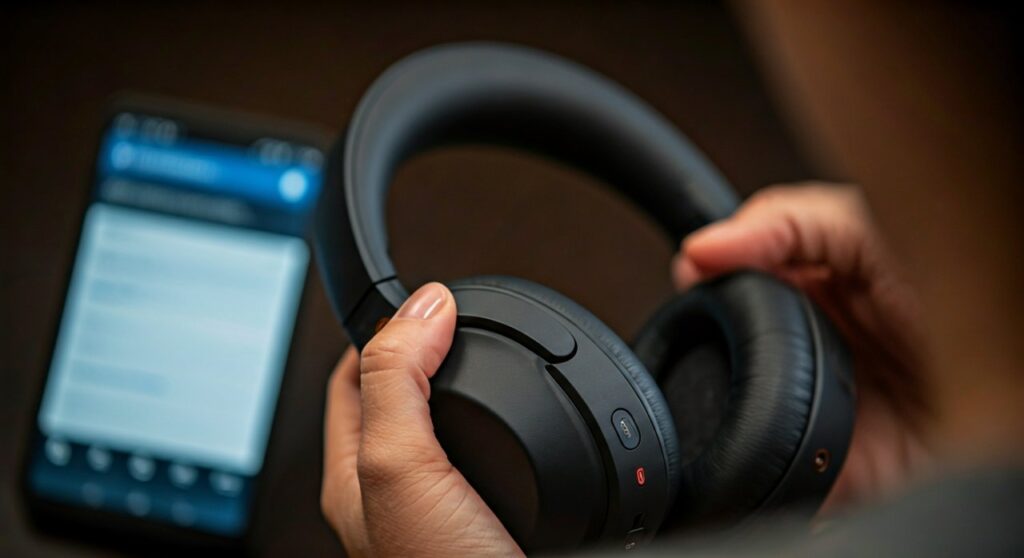
If you are frustrated that your premium Sony WH-1000XM5 or WF-1000XM4 earbuds aren’t appearing in your device list, you aren’t alone. This common connectivity hurdle is usually a software handshake issue rather than a hardware failure. By following specific reset protocols and clearing previous pairing caches, you can restore a stable connection in under five minutes.
Key Takeaways for Fixing Sony Bluetooth Issues
| Issue | Quick Solution | Expert Tip |
|---|---|---|
| Not in Pairing Mode | Hold Power/Pairing button for 7 seconds until the LED flashes blue. | Look for the “Pairing” voice prompt in the earcups. |
| Connected Elsewhere | Turn off Bluetooth on your previously used laptop or tablet. | Multi-point connection can hide the device from new searches. |
| Low Battery | Charge for at least 10 minutes before attempting to pair. | Some Sony models disable Bluetooth discovery below 10% battery. |
| Software Glitch | Perform a Factory Reset via the Sony Headphones Connect App. | This clears the internal pairing list entirely. |
| App Interference | Update the Sony Headphones Connect app to the latest version. | Ensure Location Permissions are enabled on Android/iOS. |
Why Won’t My Sony Headphones Show Up on Bluetooth? The Most Common Culprits
The primary reason why won’t my Sony headphones show up on bluetooth is that the device is stuck in “Standby Mode” rather than “Pairing Mode.” Unlike some modern peripherals that automatically broadcast their signal when turned on, Sony headphones require a manual trigger to become visible to new devices.
You Aren’t Entering Pairing Mode Correctly
Many users simply press the power button until the device turns on. However, for a new connection, you must hold the button much longer. For the Sony WH-1000XM4 or XM5, you need to hold the button for approximately 7 seconds until you hear “Pairing” and see the blue LED light flash twice in succession.
The Multi-point Connection Trap
If your headphones are already paired with your laptop, they may refuse to “show up” on your phone. Sony’s Multi-point connection feature is excellent for switching between two devices, but it can sometimes prioritize an active stream over a new pairing request. Disabling Bluetooth on the first device is the fastest way to force the headphones to look for a new partner.
Interference and Distance
Bluetooth operates on the 2.4 GHz frequency, which is crowded with signals from Wi-Fi routers and microwaves. If you are more than 3 feet away from your device during the initial pairing, the signal might be too weak to register in the search list. Always keep the headphones and the host device touching or very close during the setup.
Step-by-Step Guide to Make Your Sony Headphones Visible
If you are asking yourself why are my headphones not showing up on Bluetooth, follow this expert-verified sequence to force a connection. This process works for the WH series (Over-ear) and WF series (In-ear).
Step 1: Force Pairing Mode
- Ensure the headphones are turned off.
- Press and hold the Power button (or the Pairing button on some models).
- Do not let go when you hear “Power On.”
- Continue holding for a total of 7 to 10 seconds.
- The LED light should flash blue. This indicates the headphones are now “discoverable.”
Step 2: Refresh the Host Device
On your iPhone, Android, or PC, toggle the Bluetooth switch off and then back on. This forces the OS to clear its temporary scan cache and look for new signals. If the Sony headphones still don’t appear, restart the host device entirely.
Step 3: Use the Sony Headphones Connect App
Sometimes the standard Bluetooth settings menu fails to see the device. Open the Sony Headphones Connect app. Often, the app can detect the hardware via LE (Low Energy) Bluetooth even when the main audio channel isn’t showing up. Follow the in-app prompts to complete the pairing.
Troubleshooting Specific Sony Models
Different models have unique quirks. If you are wondering why won’t my headphones show up on bluetooth specifically for earbuds versus over-ear models, use these model-specific tips:
Sony WF-1000XM4 and XM5 (Earbuds)
- The Case Method: Place both earbuds in the charging case.
- Touch Sensors: With the case open, place your fingers on the touch sensors of both the left and right units for about 7 seconds.
- The Indicator: The case light will flash green or blue to show it is ready to pair.
Sony WH-CH720N and Entry-Level Models
- Button Layout: These models often have a dedicated “Pairing” button or require a double-tap of the power button.
- NFC Pairing: If your phone supports NFC, tap the back of your phone to the “N” mark on the earcups. This bypasses the Bluetooth search menu entirely.
Advanced Fixes: Factory Resetting Your Sony Headphones
When standard pairing fails, a Factory Reset is the “nuclear option” that usually fixes the issue of why won’t my sony headphones show up on bluetooth. This clears all paired devices and restores default settings.
How to Reset WH-1000XM5 Over-Ear Headphones
- Turn off the headphones and disconnect the USB-C cable.
- Press and hold the Power button and the Custom/NC/AMB button simultaneously for about 7 seconds.
- The blue indicator light will flash four times.
- Your headphones are now back to factory settings. Try searching for them on Bluetooth again.
How to Reset WF-1000XM4 Earbuds
- Place earbuds in the charging case.
- Hold your fingers to the touch sensors on both earbuds.
- Wait for the light to flash red, then release.
- This resets the connection data without deleting your customized EQ settings in the app.
Environmental and Hardware Factors to Consider
Sometimes the reason why are my headphones not showing up on bluetooth isn’t about buttons at all. It could be your environment or the health of your hardware.
- Signal Congestion: Move away from your Wi-Fi router. Many routers blast signals on the same frequency as Bluetooth, causing “noise” that prevents your phone from seeing the headphones.
- Battery Health: If your headphones are several years old, the battery might report 10% but actually be too weak to power the Bluetooth radio. Try pairing while the headphones are plugged into a power source (if the model supports it).
- Firmware Mismatch: If your phone just had a major OS update (like moving to iOS 17 or Android 14), previous Bluetooth protocols might be buggy. Updating the headphones’ firmware via the Sony Headphones Connect app on a different device first can solve this.
When to Contact Sony Support
If you have tried the 7-second hold, the factory reset, and toggling your phone’s Bluetooth without success, you may be facing a hardware issue. Look for these “red flags”:
- The LED light does not turn on even after hours of charging.
- One earbud connects while the other is never discovered.
- The headphones show up as a “Unknown Device” with a string of numbers instead of “Sony WH-1000XM5.”
In these cases, the internal Bluetooth antenna may have become disconnected due to a drop or moisture exposure. If your device is under the 1-year limited warranty, Sony will typically replace the unit.
Frequently Asked Questions (FAQs)
Why is only one of my Sony earbuds showing up on Bluetooth?
This usually happens if the earbuds have “de-synced” from each other. Place both back in the case and hold the touch sensors simultaneously for 10 seconds to re-link them. The phone should then see them as a single stereo pair.
Can I pair Sony headphones to two devices at once?
Yes, models like the WH-1000XM4 and XM5 support Multi-point connection. However, you must enable this feature within the Sony Headphones Connect app under the “System” tab before the headphones will show up on a second device simultaneously.
Why won’t my Sony headphones show up on my Windows PC?
Windows often requires you to go to Settings > Devices > Bluetooth & other devices and ensure “Bluetooth devices discovery” is set to Advanced. If it is set to “Default,” it may filter out the headphones.
Does “Initialize the Settings” delete my warranty?
No. Initializing or factory resetting your headphones is a standard troubleshooting step recommended by Sony. it only deletes your custom Equalizer (EQ) settings and paired device list; it does not affect your warranty or hardware.
Why does my phone see the headphones but won’t connect?
This is a “Pairing Cache” error. Go to your phone’s Bluetooth settings, find the Sony headphones, and select “Forget This Device.” Then, restart the pairing process from scratch by holding the power button for 7 seconds.
**
**
**
**









