

Why Is My Projector Crooked? Causes and Instant Fixes
Your projector image is crooked because the optical axis of the lens is not perfectly perpendicular to your screen. This distortion, often called keystone effect, occurs when the projector is tilted up, down, or positioned off-center relative to the projection surface.
To fix a crooked image, you must physically align the projector so it is level and centered, or utilize features like Lens Shift and Keystone Correction. Most alignment issues are caused by a loose ceiling mount, uneven furniture, or “roll” and “yaw” errors during the initial setup.
Key Takeaways: How to Fix a Lopsided Image
- Physical Alignment First: Always try to level the projector physically before using digital settings to preserve image resolution.
- The 90-Degree Rule: The projector lens must be exactly parallel to the screen to avoid a trapezoidal shape.
- Lens Shift vs. Keystone: Use Lens Shift (optical) for zero quality loss; use Keystone Correction (digital) only as a last resort as it compresses pixels.
- Mount Security: Check if the mounting bracket screws have loosened due to fan vibrations or gravity over time.
Understanding Why Your Projector Image Looks Crooked
If you have ever spent an hour fiddling with a Home Theater setup only to find the top of the image is wider than the bottom, you are dealing with geometric distortion. As an expert who has installed hundreds of Epson, BenQ, and Optoma units, I can tell you that “straight” is a game of millimeters.
The light leaves the lens in a cone shape. If that cone hits the wall at any angle other than 90 degrees, one side of the “cone” travels further than the other. This extra distance allows the light to spread more, creating a larger side and a smaller side.
Common Types of Image Crookedness
- Vertical Keystone: The top is wider than the bottom (or vice versa). This happens when the projector is tilted up or down.
- Horizontal Keystone: One side is taller than the other. This occurs when the projector is placed to the left or right of the screen center.
- Rotation (Roll): The entire image is slanted like a crooked picture frame. This is almost always a physical leveling issue.
Step 1: Physical Leveling and Positioning
Before touching a single remote button, you must ensure the hardware is stable. In my experience, 80% of “crooked” complaints stem from a projector sitting on an uneven shelf or a ceiling mount that has slightly sagged.
Check the Surface and Mount
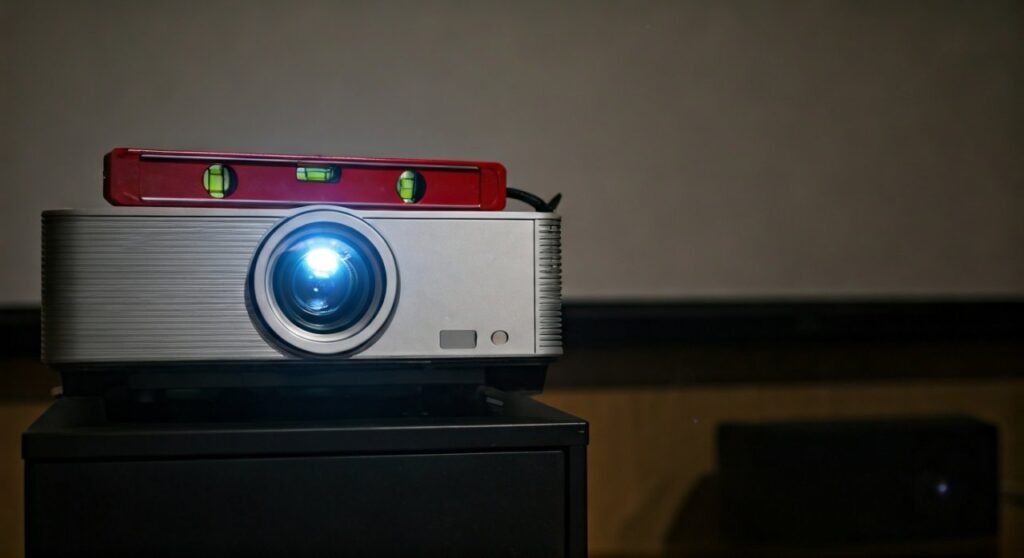
- Use a Bubble Level: Place a small level on top of the projector. If the bubble isn’t centered, your image won’t be either.
- Tighten the Pivot Screws: Ceiling mounts have “joints” for pitch, roll, and yaw. If these aren’t torqued down, the weight of the projector will cause it to drift.
- Adjust the Feet: If your projector is on a table, use the adjustable screw-in feet to compensate for uneven furniture.
The “Center-to-Center” Rule
The center of the lens should ideally align with the horizontal center of the screen. If you are projecting from an angle (like a side table), the light path is inherently distorted. If you cannot place the projector in the center, you will be forced to use Horizontal Keystone Correction.
Step 2: Utilizing Optical Lens Shift
If your projector is a mid-to-high-end model (like the Epson Home Cinema series or Sony 4K models), it likely features Lens Shift. This is a mechanical adjustment that moves the lens assembly inside the chassis.
| Feature | Method | Impact on Quality | Best For |
|---|---|---|---|
| Lens Shift | Optical (Mechanical) | None (Maintains 100% resolution) | Permanent installations |
| Keystone | Digital (Software) | High (Causes pixelation/blur) | Portable/Quick setups |
| Corner Fit | Digital (Software) | Very High (Loses significant detail) | Irregular surfaces |
Why Experts Prefer Lens Shift
When you use Lens Shift, you are not stretching pixels; you are simply moving the “sweet spot” of the glass. Always maximize your physical lens shift range before resorting to digital “Keystone” menus. This ensures your 1080p or 4K content stays crisp.
Step 3: Solving the Trapezoid (Keystone Correction)
If your projector is mounted high on a ceiling or low on a coffee table, you will see a trapezoid shape. This is the primary reason people ask why is my projector crooked.
How to Apply Keystone Correction
- Access the Menu: Open your projector’s settings and look for “Installation” or “Display.”
- Vertical Keystone: Use this to fix images that are wider at the top or bottom.
- Horizontal Keystone: Use this if the image is wider on the left or right side.
- Auto-Keystone: Many modern portable projectors (like Samsung The Freestyle or Anker Nebula) have sensors to do this automatically. Turn this off if you want manual precision.
Pro Tip: Excessive digital correction creates “light gray bars” outside the corrected image area. This is wasted light and can be distracting in a dark room. Always prioritize physical placement.
Step 4: Troubleshooting Screen Alignment
Sometimes the projector isn’t the problem—the screen is. If you are projecting onto a fixed-frame screen or a pull-down screen, small errors in the screen’s hanging position can mimic a crooked projector.
Common Screen Issues
- Waves in Fabric: If using a cheap pull-down screen, “waves” or “curls” at the edges make the image look warped.
- Wall Surface: No wall is perfectly flat. If you are projecting onto a wall, a slight “bow” in the drywall can make lines look curved rather than straight.
- Screen Tension: Ensure your screen is perfectly level. Even a 0.5-degree tilt in the screen’s mounting bar will make the projector image appear crooked.
Expert Tips for a Perfectly Square Image
Through years of troubleshooting home cinemas, I have developed a few “Golden Rules” for a perfect setup:
- The “Zoom Out” Method: To see if your projector is truly centered, zoom the lens out until the image is smaller than the screen. It is much easier to see if a small rectangle is centered inside a larger rectangle.
- Grid Patterns: Most projectors (especially BenQ and ViewSonic) have a built-in “Test Pattern” (a grid of squares). Use this instead of a movie to align your edges.
- Avoid Digital Zoom: Digital zoom is different from optical zoom. It cuts off the edges of your image to make it fit, which reduces brightness and sharpness.
- Thermal Expansion: Believe it or not, as projectors heat up, the plastic casing and mounts can expand slightly. If you align it “cold,” check it again after 20 minutes of operation.
Step-by-Step Summary: The Alignment Checklist
- Center the Projector: Align the lens with the center of the screen.
- Level the Chassis: Use a bubble level to ensure the projector isn’t rolling to one side.
- Check the Pitch: Ensure the projector is pointing straight forward, not tilted up or down.
- Apply Lens Shift: Adjust the knobs to center the image within the frame.
- Use Keystone: Fine-tune the corners only if the previous steps didn’t yield a perfect rectangle.
- Lock the Mount: Tighten all screws on your mounting bracket to prevent “creep.”
FAQ: Frequently Asked Questions
Why does my projector image keep shifting over time?
This is usually caused by fan vibration. As the projector runs, the internal fan creates micro-vibrations that can slowly loosen the screws on a cheap ceiling mount. Use a drop of thread-locker (Loctite) on the mount screws if this persists.
Can I fix a crooked image if my projector has no Keystone?
Yes, but you must be 100% precise with physical placement. You will need to move the projector’s height or position until the “90-degree rule” is met. If the projector is on a table, use books or adjustable risers to change the angle.
Why is one corner of my projector blurry but the rest is sharp?
This is a classic sign of a crooked projector. When the projector is at an angle, one corner of the screen is physically further from the lens than the others. The lens cannot focus on two different distances at once. Straighten the projector, and the focus issue will usually disappear.
Is digital keystone bad for gaming?
Yes. Digital keystone correction adds input lag because the projector’s processor has to reshape every frame of the game before displaying it. For competitive gaming, always align the projector physically.
Does the screen size affect crookedness?
The larger the image, the more noticeable the distortion becomes. A 1-degree tilt on a 50-inch image might be invisible, but on a 120-inch screen, it will result in a glaringly lopsided edge.









