

To put JLab headphones in pairing mode, ensure the device is powered off, then press and hold the power button for 7 to 10 seconds until the LED light flashes blue and white. For JLab earbuds, simply remove them from the charging case; they will automatically enter pairing mode, signaled by one earbud blinking blue and white while the other stays solid white.
Successfully connecting your audio gear shouldn’t be a headache. Having tested the entire JLab lineup—from the budget-friendly Go Air Pop to the premium Epic Air Sport—I have found that while the process is generally consistent, small nuances in timing can make or break your connection. This guide provides the exact steps for every model and troubleshooting tips to get you back to your music in seconds.
Key Takeaways: How to Put JLab Headphones in Pairing Mode
If you are in a hurry, here are the essential steps to get your JLab devices connected:
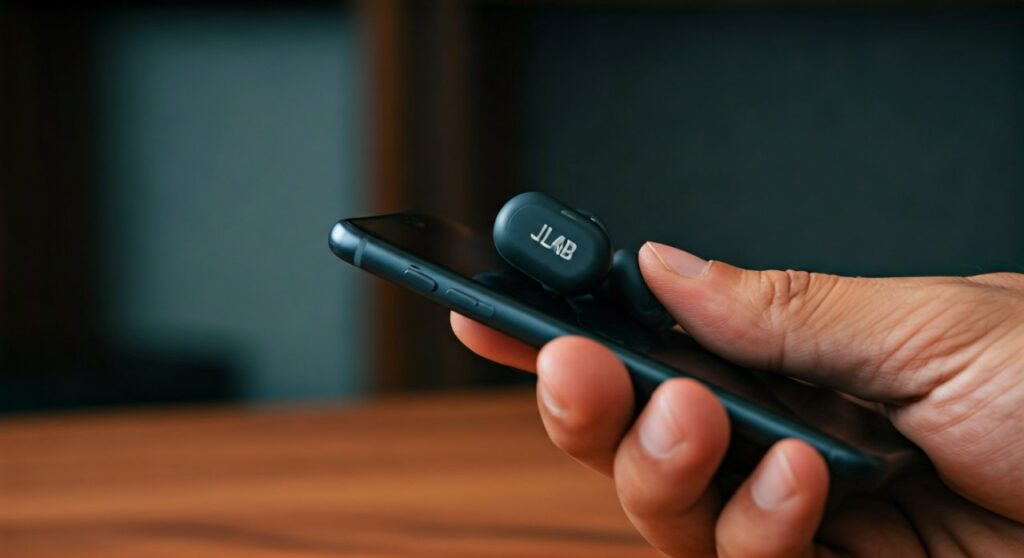
- Over-Ear Headphones: Hold the power button for 10 seconds from an “off” state.
- True Wireless Earbuds: Take them out of the case; they auto-pair. If they don’t, tap and hold the touch sensors on both for 3+ seconds.
- The “Magic” Light: Always look for the blinking blue and white LED pattern.
- Resetting: If pairing fails, a “7-tap” reset on the earbuds usually clears any software glitches.
- Comparison: Unlike how to put Jabra headphones in pairing mode which often uses a dedicated Bluetooth button, JLab relies mostly on multi-function power buttons.
Step-by-Step: How to Put JLab Over-Ear and On-Ear Headphones in Pairing Mode
For models like the JLab Studio, JLab Neon, or JLab Play, the process is manual. These devices do not typically have an “auto-on” feature when moved, so you must trigger the discovery mode yourself.
Start with Power Off
Ensure your headphones are completely turned off. If they are currently connected to another device, toggle the Bluetooth off on that device first to prevent “signal hijacking.”
The Long Press Technique
Locate the power button (often marked with a power icon or the JLab logo). Press and hold this button. You will hear a voice prompt saying “Power On,” but do not let go yet.
Identify the Pairing Signal
Continue holding the button for a total of about 8 to 10 seconds. The LED light will eventually transition from a solid color to a flashing blue and white pattern. This is the universal sign that your JLab headphones are now discoverable.
Connect on Your Device
Open the Bluetooth settings on your iPhone, Android, or PC. Look for the device name (e.g., JLab Studio Wireless) and select it. You will hear “You are connected” once the link is established.
How to Get JLab True Wireless (TWS) Earbuds into Pairing Mode
True Wireless earbuds like the JLab Go Air Pop or JBuds Air operate differently because they rely on the charging case for power management.
Auto-Pairing Mode
Most modern JLab earbuds enter pairing mode the moment you remove them from the case.
- Step 1: Open the case and remove both earbuds.
- Step 2: Wait for them to sync to each other (one will blink blue/white, the other will stay solid).
- Step 3: Select them from your phone’s Bluetooth menu.
Manual Pairing for Earbuds
If you need to switch to a new phone and the earbuds aren’t showing up, you can force them into pairing mode manually:
- Turn off Bluetooth on any previously connected device.
- Take the earbuds out of the case.
- Press and hold the touch sensor or button on both earbuds for at least 3 seconds.
- They will start flashing to indicate they are searching for a new host.
| JLab Model | Pairing Method | LED Indicator |
|---|---|---|
| Go Air Pop | Remove from case | Blinking Blue/White |
| JBuds Air | Remove from case | Blinking Blue/White |
| Studio Wireless | Hold Power (10s) | Blinking Blue/White |
| Epic Air Sport | Hold Touch Sensor (3s) | Blinking Blue/White |
| Neon Bluetooth | Hold Power (8s) | Blinking Blue/White |
Troubleshooting: Why Won’t My JLab Headphones Pair?
Even for experts, Bluetooth can be finicky. If you are struggling with how to get bluetooth headphones in pairing mode, check these common failure points.
The “One Side Only” Issue
This is the most common complaint with JLab earbuds. If only one side is playing, they have “un-synced” from each other. To fix this:
- “Forget” the JLab device in your phone’s Bluetooth settings.
- Tap the touch sensor on one earbud 7 times quickly. The light will blink blue 3 times.
- Repeat the 7 taps on the other earbud.
- Put them back in the case, then take them out together to re-sync.
Interference and Battery
Low battery is a silent killer of Bluetooth signals. If your headphones have less than 20% charge, they may fail to enter discovery mode to save power. Always charge to at least 50% before attempting a new pairing.
How JLab Compares: Pairing Other Popular Brands
While you are learning how to put my headphones in pairing mode, it is helpful to see how JLab differs from competitors like JBL, Beats, or Samsung.
How to put JBL headphones in pairing mode
To get JBL headphones into pairing mode, you usually look for a dedicated Bluetooth button (a symbol that looks like a jagged ‘B’). Press it for 3 seconds. If there is no dedicated button, hold the power button while the device is on. This is a key difference: JLab usually starts from “Off,” while JBL often starts from “On.”
How to put Beats headphones into pairing mode
For Beats (like Powerbeats Pro or Solo3), the process often involves a small, circular “system button.”
- Place the earbuds in the case.
- Hold the system button for 5 seconds until the LED flashes white.
- This is similar to how to get Samsung headphones into pairing mode, which also relies heavily on the case button or the Galaxy Wearable app.
How to put Jabra headphones in pairing mode
If you are wondering how to put Jabra headphones into pairing mode, most Jabra Elite models require you to hold the buttons on both the left and right earbuds simultaneously for 3 seconds.
Expert Tips for a Stable Bluetooth Connection
As a long-time audio reviewer, I have found that the environment matters as much as the hardware. Follow these tips to ensure your JLab connection stays rock solid:
- Clear the Cache: If you’ve paired your JLab headphones to five different devices, the internal memory might be full. Perform a factory reset (the 7-tap method) to clear the list.
- Distance Matters: During the initial pairing, keep your headphones within 3 feet of your phone. Once paired, you can move up to 30 feet away.
- Update Firmware: Use the JLab Store + Burn-in Tool app on iOS or Android. It can push firmware updates that fix known pairing bugs.
- Avoid Microwave Interference: Believe it or not, standing next to a running microwave can disrupt the 2.4GHz frequency used by Bluetooth.
Frequently Asked Questions (FAQs)
How do I put my headphones in pairing mode if they don’t have a button?
Most modern earbuds without physical buttons use touch-sensitive surfaces. For JLab, you typically tap and hold the touch sensor for 3-5 seconds. If that fails, placing them in the charging case and then removing them is the default way to trigger pairing.
Why are my JLab headphones blinking red and blue?
If you see red and blue, it usually indicates the battery is low or there is a charging error. True pairing mode for JLab is almost always blue and white. If it is red, plug them into a USB power source for at least 60 minutes.
Can I pair JLab headphones to two devices at once?
Some higher-end models like the JLab Epic Air support Bluetooth Multipoint. To use this, pair with the first device, turn off its Bluetooth, pair with the second device, and then turn the first device’s Bluetooth back on.
How to put iClever headphones in pairing mode?
For those using iClever kids’ headphones, the process is similar to JLab. Hold the power button for about 5 seconds until the LED flashes red and blue. Most budget brands follow this “long-hold” convention.
What should I do if my phone can’t find my JLab headphones?
First, ensure the headphones aren’t already connected to a different device in the house (like a tablet or laptop). Second, toggle your phone’s Bluetooth off and on. Finally, perform a factory reset on the headphones to force them to broadcast a fresh signal.









