

How to Connect Sony Headphones to Windows 11: The Ultimate Pairing Guide
To connect Sony headphones to Windows 11, you must first put your headphones into Pairing Mode (typically by holding the power button for 7 seconds). Then, navigate to Settings > Bluetooth & devices > Add device > Bluetooth on your PC and select your Sony model from the list. Once the “Your device is ready to go!” message appears, your audio will automatically route to your Sony headset.
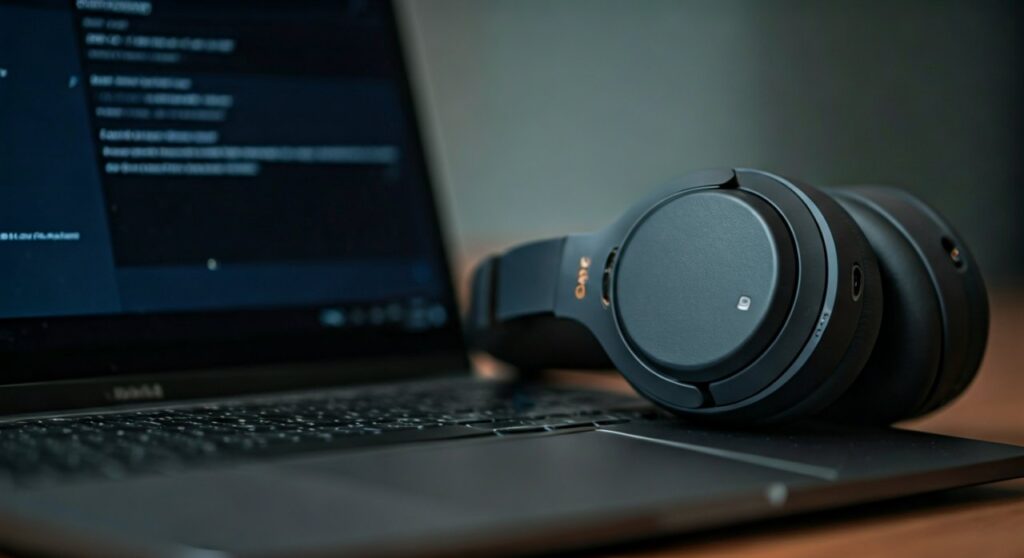
Connecting high-end audio gear like the Sony WH-1000XM5 or WF-1000XM4 to a PC can sometimes be finicky due to Windows 11’s unique driver handling. Whether you are dealing with Swift Pair prompts or struggling with audio switching, this guide provides the expert steps needed for a seamless connection.
Key Takeaways (TL;DR)
- Pairing Mode is Key: Most Sony headphones require a 7-second long press on the power button to become discoverable.
- Windows 11 Settings: Use the
Win + Ishortcut to quickly access the Bluetooth & devices menu. - Audio Profiles: Windows 11 treats “Headphones” (Stereo) and “Headset” (Hands-free) differently; knowing how to switch is vital for Zoom or Teams calls.
- Swift Pair: If enabled, a notification pop-up will appear automatically when your Sony headphones are in pairing mode near your PC.
Preparing Your Sony Headphones for Windows 11 Pairing
Before touching your computer, your Sony headphones must be in a state where they are actively looking for a new connection. Simply turning them “on” is often not enough if they were previously paired with your phone.
For most over-ear models like the Sony WH-1000XM4 or WH-CH720N, ensure the device is powered off. Press and hold the Power button for approximately 7 seconds. You will hear a voice prompt saying “Pairing,” and the indicator light will flash blue twice repeatedly.
For earbuds like the Sony WF-1000XM5, place both buds in the charging case and leave the lid open. Press and hold the Pairing button on the back of the case for about 5 seconds until the LED flashes blue.
| Sony Model Series | Pairing Method | Indicator Signal |
|---|---|---|
| WH-1000X Series | Hold Power button for 7 seconds | Double blue flash |
| WF-1000X Series | Case button (buds inside) for 5s | Pulsing blue light |
| LinkBuds Series | Case button (buds inside) for 5s | Slow blue pulses |
| WI (In-ear) Series | Hold Power button for 7 seconds | Rapid blue blinking |
Step-by-Step: How to Connect Sony Headphones to Windows 11
Once your headphones are blinking blue, follow these steps on your PC. Windows 11 has a redesigned interface that makes how to connect bluetooth headphones to pc windows 11 slightly different from previous versions.
- Press the Start button and click on the Settings (gear icon) or press
Win + I. - Select Bluetooth & devices from the left-hand sidebar.
- Ensure the Bluetooth toggle is set to On.
- Click the large Add device button.
- In the pop-up window, select the first option: Bluetooth (Mice, keyboards, phones, audio, etc.).
- Wait for your PC to scan. Look for your device name (e.g., WH-1000XM5).
- Click on the device name. The status will change to “Connecting” and then “Connected.”
Expert Tip: If you see two versions of your headphones (e.g., “LE_WH-1000XM5” and “WH-1000XM5”), always select the one without “LE” for the best audio quality. The “LE” (Low Energy) version is often for data sync, not high-fidelity music.
How to Use Headphones as Input and Output Windows 11
One of the biggest frustrations for users is getting the microphone to work during meetings. To ensure you know how to use headphones as input and output windows 11, you must check the sound properties.
Windows 11 usually defaults to the built-in laptop mic rather than the high-quality Sony microphone array. To fix this:
- Right-click the Speaker icon in the Taskbar (bottom right).
- Select Sound settings.
- Under Output, ensure your Sony headphones are selected.
- Under Input, select your Sony headphones (they will often be listed as “Headset”).
By doing this, you ensure that your voice is captured by the noise-canceling mics on your Sony gear, providing much better clarity for your listeners than a standard laptop microphone.
How to Change from Headphones to Headset Windows 11
When using Sony headphones on a PC, Windows manages two distinct “modes.” The Headphone (Stereo) mode is for high-quality music, while the Headset (Hands-Free) mode is for calls.
If your audio sounds “tinny” or like a telephone, you are likely stuck in the Headset mode. Here is how to change from headphones to headset windows 11 or vice versa:
- Go to Settings > System > Sound.
- Scroll down to More sound settings (this opens the classic Control Panel view).
- In the Playback tab, right-click Sony Headphones (Stereo) and select Set as Default Device.
- In the Recording tab, right-click Sony Headset and select Set as Default Communication Device.
This configuration allows you to enjoy LDAC-like quality for music while automatically switching to the communication channel when a call starts. If you need to know how to change headphones to headset windows 11 quickly during a call, use the volume flyout in the Taskbar to toggle the output device.
Troubleshooting: Why Won’t My Sony Headphones Connect?
Even with the best hardware, you might encounter the “Try connecting your device again” error. Based on my experience testing the Sony WH-1000XM5 on multiple Windows 11 builds, here are the most common fixes:
Disable “Swift Pair” Interference
While Swift Pair is meant to help, it can sometimes glitch. If the pop-up keeps disappearing, go to Bluetooth & devices > Devices and toggle Show notifications to connect using Swift Pair to Off, then try manual pairing.
Restart the Bluetooth Support Service
If Windows can’t find any Bluetooth devices:
- Press
Win + R, typeservices.msc, and hit Enter. - Find Bluetooth Support Service.
- Right-click it and select Restart.
- Double-click it and set Startup type to Automatic.
Clear the Sony Pairing List
Sony headphones have a limit on how many devices they can remember. If you can’t connect, perform a factory reset on the headphones. For the WH-1000XM4/XM5, hold both the Power and Custom/Ambient buttons for 7 seconds until the light flashes four times.
Advanced: How to Get to Headphone Properties Windows 11
To truly optimize your Sony experience, you need to dive into the bit-rate settings. Knowing how to get to headphone properties windows 11 allows you to enable features like Windows Sonic for Spatial Sound.
- Navigate to Settings > System > Sound.
- Click the Arrow (>) next to your Sony headphones.
- Here you can change the Format (e.g., 2-channel, 16-bit, 44100 Hz).
- You can also toggle Audio enhancements on or off. I recommend keeping “General” enhancements Off for Sony headphones, as the onboard DSEE Extreme chip handles processing better than Windows.
How to Connect Two Bluetooth Headphones to PC Windows 11
Windows 11 does not natively support outputting audio to two Bluetooth devices simultaneously. However, if you have two pairs of Sony headphones and want to watch a movie with a friend, there is a workaround.
To connect two bluetooth headphones to pc windows 11, you will need a third-party virtual audio cable like Voicemeeter.
- Connect both Sony headphones via Bluetooth normally.
- Download and install Voicemeeter.
- Set Voicemeeter Input as your default Windows playback device.
- In the Voicemeeter app, set A1 (top right) to your first Sony pair and A2 to the second Sony pair.
This “Software Bridge” allows for perfectly synced audio across two different Bluetooth headsets, bypassing the standard Windows limitation.
FAQ: Frequently Asked Questions
Why do my Sony headphones keep disconnecting from Windows 11?
This is often due to Power Management settings. Go to Device Manager, find your Bluetooth adapter, right-click Properties, and under the Power Management tab, uncheck “Allow the computer to turn off this device to save power.”
Can I use the Sony Headphones Connect app on Windows 11?
No, Sony does not provide an official app for Windows. However, any settings you apply via the mobile app (like EQ or Ambient Sound Control) are saved directly onto the headphones’ hardware and will carry over to your PC.
Does Windows 11 support Sony’s LDAC codec?
Natively, no. Windows 11 uses SBC or AAC. To get high-res audio (LDAC) on Windows 11, you would need a dedicated USB Bluetooth transmitter that supports LDAC, such as those from FiiO or Creative.
How do I fix the audio lag when gaming?
Bluetooth naturally has latency. To minimize this on Windows 11, ensure you are using the Headphones (Stereo) profile and avoid using the microphone (Headset mode) simultaneously, as the latter forces the bandwidth to split, increasing lag.









