

How to Connect Headphones to Zoom: The Quick Start Guide
To connect headphones to Zoom, first ensure your headphones are physically plugged into your device or paired via Bluetooth. Once connected, launch the Zoom desktop client, click on your Profile Picture, navigate to Settings, and select the Audio tab. Under the Speaker and Microphone dropdown menus, select your specific headphone model to ensure audio routes correctly during your meeting.
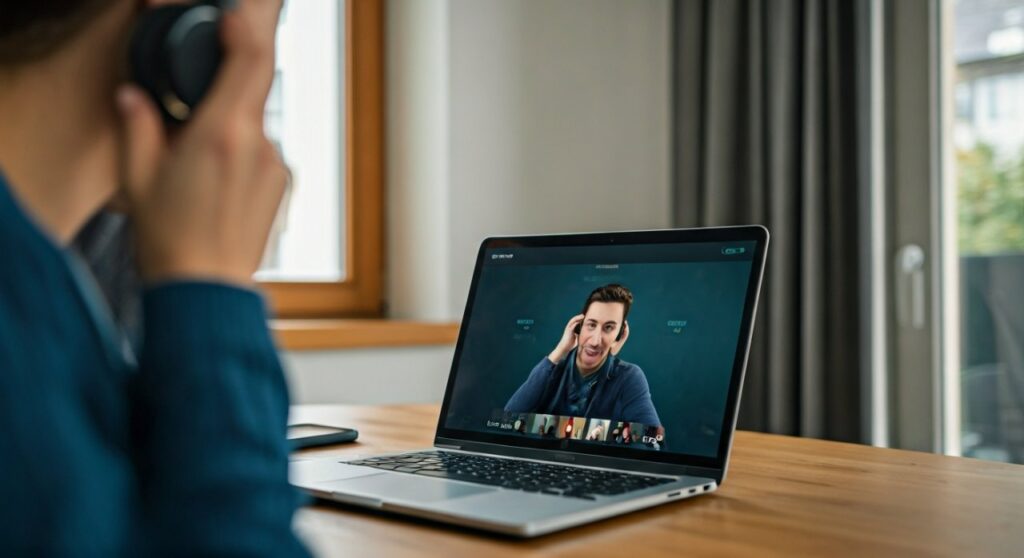
Whether you are using a Bose QuietComfort, Apple AirPods, or a standard wired Logitech headset, the process involves synchronizing your hardware with Zoom’s internal software settings. Having managed hundreds of remote webinars, I have found that 90% of audio issues stem from the computer defaulting to the “Internal Speakers” instead of the connected peripheral.
Key Takeaways: Connecting Your Audio Gear
| Feature | Action Required |
|---|---|
| Wired Connection | Plug into 3.5mm jack or USB-A/USB-C port. |
| Wireless Connection | Pair via Bluetooth Settings before opening Zoom. |
| Zoom Settings | Select your device in the Audio menu. |
| Test Audio | Use the “Test Speaker” button to verify volume levels. |
| Troubleshooting | Check Mute status and Input Volume sliders. |
Step 1: Physically Connecting Your Headphones to Your Device
Before Zoom can recognize your hardware, your operating system must detect it. Depending on your gear, use one of the following methods.
Connecting Wired Headphones
Wired headsets are the most reliable option for professional calls because they eliminate battery anxiety and latency.
- 3.5mm Analog Jack: Simply plug the connector into the headphone port (often marked with a headset icon).
- USB Headsets: Plug the USB-A or USB-C connector into an available port. Windows and macOS usually install drivers automatically for brands like Jabra or Sennheiser.
Connecting Bluetooth Headphones
For wireless freedom, you must pair your device first.
- Put your headphones (e.g., Sony WH-1000XM5) into Pairing Mode.
- On Windows: Go to Settings > Bluetooth & devices > Add device.
- On Mac: Go to System Settings > Bluetooth and click “Connect” next to your device.
- Ensure the status says “Connected” before moving to the next step.
Step 2: Configuring Audio Settings Within Zoom
Once the device is “seen” by your computer, you must tell Zoom to use it. This is the step most users skip, leading to the dreaded “Can you hear me?” moment.
Pre-Meeting Configuration
It is best practice to set your audio before the call starts.
- Open the Zoom Desktop Client.
- Click the Settings (gear icon) in the top-right corner.
- Click the Audio tab on the left sidebar.
- In the Speaker section, click the dropdown and select your headphones.
- In the Microphone section, select your headset’s built-in mic (or an external mic).
In-Meeting Configuration
If you are already in a meeting and can’t hear anyone:
- Look at the bottom-left corner of the Zoom window.
- Click the small arrow (^) next to the Mute/Unmute microphone icon.
- Under Select a Speaker, click your headphones.
- Under Select a Microphone, ensure your headset is checked.
Step 3: Troubleshooting Common Connection Issues
In my experience as a technical consultant, even the best hardware can glitch. Use this checklist if your how to connect headphones to Zoom process fails.
The “No Sound” Checklist
- Check Physical Mute Buttons: Many headsets (like Plantronics) have a physical mute toggle on the cord or ear cup. Ensure it is OFF.
- Volume Levels: Check both the Zoom volume slider and your computer’s system volume.
- Exclusive Mode: On Windows, some apps take “Exclusive Control” of audio. Disable this in Sound Control Panel > Properties > Advanced.
- Bluetooth Profiles: If using Bluetooth on Windows, select the “Hands-Free” profile for calls, though “Stereo” provides better output-only audio.
Fixing Microphone “Echo”
If participants hear an echo, it usually means your Microphone is set to “Internal Mic” while your Speaker is set to “Headphones.” Ensure both are set to the headset to trigger Zoom’s echo cancellation algorithms properly.
Comparing Headphone Types for Zoom Performance
| Headset Type | Pros | Cons | Best For |
|---|---|---|---|
| USB Wired | Plug-and-play, no lag | Tethered to desk | Long workdays |
| Bluetooth Over-Ear | Noise cancellation, comfort | Battery can die | Noisy offices |
| TWS Earbuds (AirPods) | Discrete, portable | Mic quality varies | Quick check-ins |
| 3.5mm Analog | No software needed | Prone to static | Budget setups |
Advanced Expert Tips for Crystal Clear Audio
To truly master how to connect headphones to Zoom, you should look beyond just the connection and focus on the quality.
Enable High Fidelity Music Mode
If you are a music teacher or performing via Zoom, go to Settings > Audio > Audio Profile and select Original Sound for Musicians. This stops Zoom from “clipping” your audio as if it were background noise.
Manage Background Noise Suppression
Zoom has built-in AI to block dogs barking or fans.
- Auto: Good for most.
- Low: Best if you are in a very quiet room.
- High: Use this if you are working from a coffee shop or a construction zone.
Check for Firmware Updates
Professional headsets from Jabra, Poly, or Logitech often have dedicated software (like Jabra Direct). Regularly updating the firmware ensures better compatibility with Zoom’s frequent software updates.
How to Connect Headphones to Zoom on Mobile (iOS/Android)
Connecting on a smartphone is slightly different as the mobile app relies heavily on system-level permissions.
- Pair your headphones via the Bluetooth settings on your iPhone or Android.
- Open the Zoom App.
- Join a meeting and tap “Join Audio” then “Wifi or Cellular Data”.
- Tap the Speaker icon in the top-left corner to toggle between “Speaker” and “Headset”.
- If it still doesn’t work, ensure Zoom has Microphone Permissions enabled in your phone’s Privacy Settings.
Expert Perspective: Why Your Bluetooth Headset Sounds “Thin”
A common complaint when learning how to connect headphones to Zoom is that high-end headphones (like the Sony WH-1000XM4) sound like a telephone during calls.
This happens because of a Bluetooth limitation called HFP (Hands-Free Profile). When the microphone is active, Bluetooth bandwidth is split between input and output, lowering the audio quality. For the best sound, use a dedicated USB Dongle (like the Jabra Link 380) which uses a different protocol to maintain high-quality audio while keeping the mic active.
Frequently Asked Questions (FAQs)
Why won’t my Bluetooth headphones show up in Zoom?
Usually, this is because the headphones are still connected to another device, like your phone. Disconnect them from other devices, restart the Zoom app, and try pairing again. Ensure your Bluetooth is turned “On” in your system settings.
Can I use two pairs of headphones on one Zoom call?
Zoom does not natively support two audio outputs. However, on a Mac, you can use Audio MIDI Setup to create a “Multi-Output Device.” On Windows, you would need third-party software like Voicemeeter.
Why does Zoom say “Your speaker is not working”?
This error usually occurs when another application is using the audio driver. Close apps like Skype, Teams, or YouTube, then refresh the Zoom audio settings.
How do I stop my headphones from disconnecting mid-call?
This is often caused by “Power Saving” settings. On Windows, go to Device Manager, find your Bluetooth adapter, right-click Properties, and uncheck “Allow the computer to turn off this device to save power.”
Are AirPods compatible with Zoom on Windows?
Yes, but they can be finicky. Always pair them through the Windows Bluetooth Settings first. If the mic doesn’t work, go to Zoom’s Audio Settings and ensure “AirPods Hands-Free AG Audio” is selected as the microphone.
Choosing between two popular JBL models? Read our JBL 470NC vs JBL 510BT comparison.







