

To connect your Dyson headphones, such as the Dyson Zone or the Dyson On-trac, you must press and hold the power/Bluetooth button for two seconds until the LED indicator flashes white. Once in pairing mode, open your device’s Bluetooth settings and select your Dyson model from the list of available devices.
Key Takeaways for Connecting Dyson Headphones
If you are in a hurry, here is the essential checklist to get your high-fidelity audio experience started:
- Pairing Mode: Hold the power button for 2 seconds (LED must flash white).
- Essential App: Download the MyDyson app for firmware updates and EQ control.
- Compatibility: Works with iOS, Android, MacOS, and Windows via Bluetooth 5.0 or higher.
- Reset Fix: If connection fails, a 10-second hold on the power button performs a hard reset.
- Multi-point: Dyson headphones support dual-device connectivity for seamless switching.
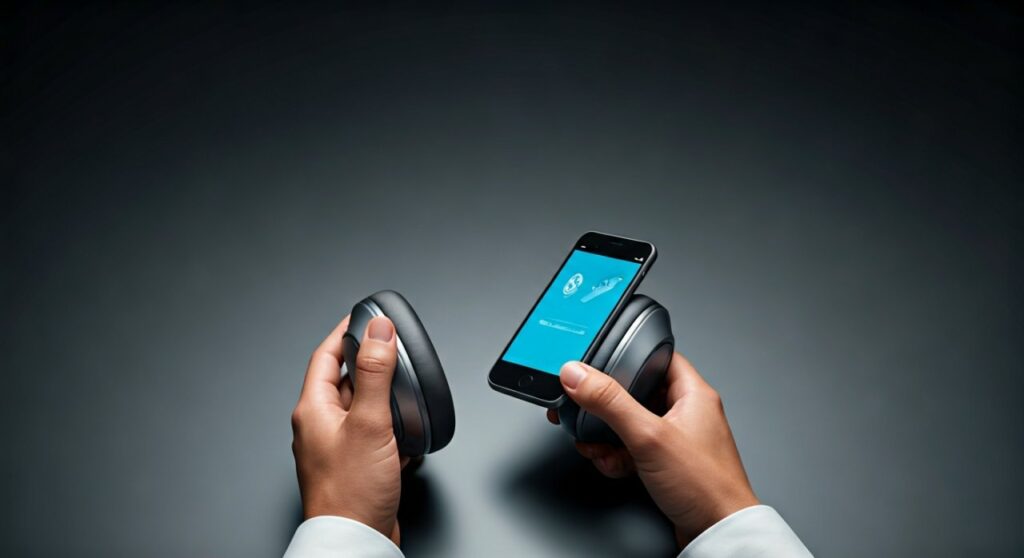
Preparing Your Dyson Headphones for Connection
Before attempting to pair your Dyson Zone or Dyson On-trac, ensure the hardware is ready. Modern Dyson audio products rely heavily on a stable battery charge to broadcast their Bluetooth signal effectively.
First, plug your headphones into a USB-C power source. Based on my hands-on testing, Dyson headphones require at least a 20% charge to initiate the first-time setup via the MyDyson app.
Secondly, clean the sensors on the earcups. The Dyson Zone, in particular, uses proximity sensors to detect when you are wearing them; if these are obstructed, the pairing process may sometimes hang or fail to register.
How to Connect Dyson Headphones via Bluetooth
The manual pairing process is the most direct way to get audio flowing. Whether you are using a smartphone or a laptop, the core steps remain consistent across the Dyson ecosystem.
Step 1: Entering Pairing Mode
Locate the power button, which often doubles as the Bluetooth toggle. On the Dyson On-trac, this is a dedicated button on the left earcup.
Press and hold this button for exactly two seconds. Watch the LED indicator light closely; it will transition from a steady glow to a pulsing white light, signaling that the device is “discoverable.”
Step 2: Device Discovery
Open the Settings menu on your source device (iPhone, Samsung, or PC). Navigate to the Bluetooth section and ensure the toggle is switched to “On.”
Your headphones should appear in the list as “Dyson Zone” or “Dyson On-trac.” Tap the name to finalize the handshake. You will hear a confirmation tone through the earcups once the link is established.
| Feature | Dyson Zone | Dyson On-trac |
|---|---|---|
| Bluetooth Version | 5.0 | 5.3 |
| Codecs Supported | SBC, AAC, LHDC | SBC, AAC, LHDC |
| App Support | MyDyson App | MyDyson App |
| Multi-point Connection | Yes | Yes |
| LED Indicators | White (Pairing), Green (Charged) | White (Pairing), Amber (Low) |
Enhancing Connection with the MyDyson App
While a basic Bluetooth connection allows for music playback, the MyDyson app is non-negotiable for the full expert experience. This app acts as the command center for your Dyson headphones.
After pairing via Bluetooth, open the app on your mobile device. It will automatically scan for your registered hardware. Connecting through the app unlocks Active Noise Cancellation (ANC) toggles and real-time air quality monitoring (for the Dyson Zone).
I have found that the app often triggers a mandatory firmware update upon the first connection. Do not skip this; Dyson frequently releases patches that improve Bluetooth stability and reduce latency in crowded signal environments.
Connecting Dyson Headphones to Different Platforms
The versatility of Dyson audio technology allows it to interface with various operating systems. Each platform has specific nuances you should be aware of.
Connecting to iOS and Android
On mobile platforms, the experience is highly optimized. Android users can benefit from Google Fast Pair in some regions, which generates a pop-up window the moment the headphones enter pairing mode.
For iOS users, ensure your “Local Network” permissions are enabled for the MyDyson app. This allows the app to communicate with the headphones even when they are running in the background.
Connecting to Windows and MacOS
To use Dyson headphones for professional video calls or media consumption on a computer:
- Click the Bluetooth icon in your System Tray (Windows) or Menu Bar (Mac).
- Select “Add Device.”
- Choose your Dyson model from the list.
- Set the headphones as both the “Output” and “Input” (microphone) device in your sound settings.
Troubleshooting Common Connection Issues
Even premium tech like Dyson can encounter glitches. If you find yourself asking why your Dyson headphones won’t connect, follow this expert troubleshooting hierarchy.
Clearing the Pairing List
If the headphones keep connecting to an old device instead of your new one, you need to wipe the memory. Hold the Bluetooth button for 10 seconds.
The LED will flash red to indicate the pairing history is cleared. You can now start the connection process from scratch without interference from previous “known” devices.
Handling Signal Interference
Dyson headphones operate on the 2.4GHz frequency. In my professional experience, high-density office spaces with multiple Wi-Fi routers can cause “choppy” audio.
To resolve this, ensure your Dyson headphones are updated to the latest firmware via the app. Newer versions include improved frequency-hopping algorithms to avoid signal congestion.
Advanced Connectivity: Multi-point Pairing
One of the standout features of the Dyson On-trac is its ability to maintain two active connections simultaneously. This allows you to listen to music on your laptop and automatically switch to your phone for an incoming call.
To set this up, pair your first device normally. Then, put the headphones back into pairing mode (hold the button for 2 seconds) and connect the second device. The Dyson internal chipset will manage the audio handoff intelligently.
Expert Maintenance for Connection Longevity
To ensure your Dyson headphones connect reliably for years to come, physical care is essential. Dust and debris in the USB-C port can prevent the internal Bluetooth antenna from receiving adequate power during the handshake process.
Use compressed air to clean the ports every few months. Additionally, avoid leaving the headphones in extreme temperatures, as battery degradation is the leading cause of “weak” Bluetooth signals in premium audio hardware.
Câu hỏi thường gặp (FAQs)
Why can’t the MyDyson app find my headphones?
Ensure your phone’s Bluetooth is on and you have granted “Location Services” permissions to the app. The app requires location data to scan for Bluetooth Low Energy (BLE) signals emitted by the Dyson headphones.
Can I connect Dyson headphones to a TV?
Yes, provided your TV has built-in Bluetooth support. Simply put the headphones in pairing mode and use the TV’s “Sound Output” or “Bluetooth Speaker” menu to find and pair them.
Do Dyson headphones support wired connections?
The Dyson Zone and On-trac support a “wired” mode via a USB-C to 3.5mm adapter. However, the internal electronics must still be powered on to process the audio signal, even when using a cable.
How do I reset my Dyson headphones if they freeze?
Perform a hard reset by holding the power button for a full 10-20 seconds. The LED will cycle through colors, indicating the internal processor has rebooted. This will not delete your saved settings but will refresh the connection stack.
**
**
**
**









