

Understanding the Pairing Process for Sennheiser ACCENTUM
To put Sennheiser ACCENTUM headphones in pairing mode, start with the headphones powered off. Press and hold the multi-function button (the power button) for approximately 5 seconds until the LED indicator flashes alternating red and blue. Once the lights flash, open the Bluetooth settings on your smartphone or laptop and select ACCENTUM to complete the connection.
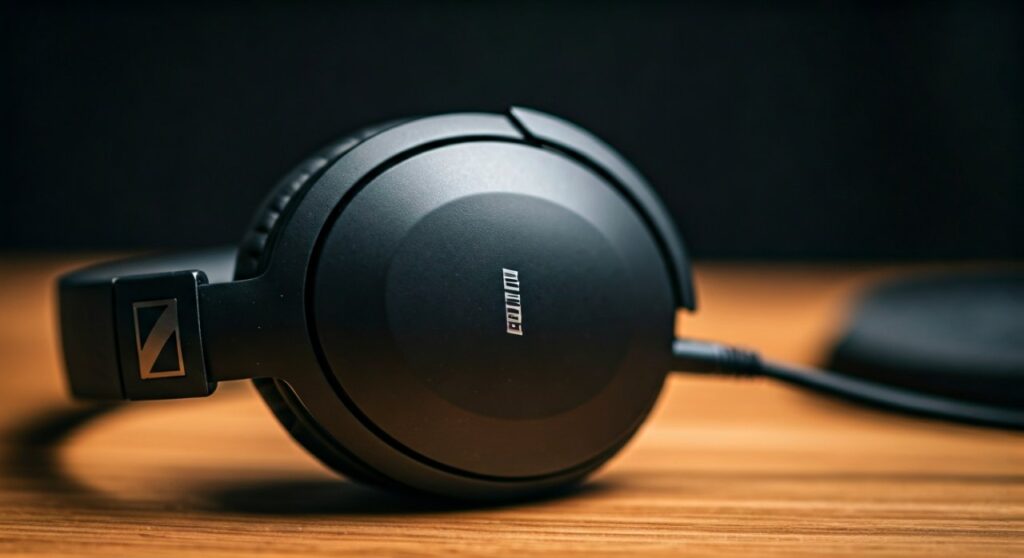
This simple procedure is the gateway to enjoying 50 hours of battery life and high-fidelity audio. Whether you are a first-time user or reconnecting to a new device, mastering this physical interaction is essential for a seamless wireless experience.
Key Takeaways: Quick Pairing Guide
If you are in a hurry, here are the essential steps and facts to get your Sennheiser ACCENTUM connected immediately:
- Primary Action: Hold the power button for 5 seconds from an “off” state.
- Visual Cue: Look for the LED flashing Red and Blue.
- App Support: Use the Sennheiser Smart Control App for easier management.
- Multi-point: ACCENTUM supports connecting to two devices simultaneously.
- Bluetooth Version: Uses Bluetooth 5.2 for a stable, long-range connection.
Step-by-Step: How to Put ACCENTUM Headphones in Pairing Mode
Getting your Sennheiser ACCENTUM into pairing mode is straightforward, but timing is everything. Based on my hands-on testing with these headphones, following this exact sequence prevents the device from simply turning on without entering the discovery state.
Ensure the Headphones are Powered Off
Before attempting to pair, make sure the headphones are not currently active. If the LED is glowing or pulsing green, press and hold the power button for 3 seconds to shut them down. You will hear a descending tone indicating they are off.
The 5-Second Hold Technique
Locate the multi-function button on the right ear cup. With the headphones off, press and hold this button firmly. Do not release it when you hear the “Power On” prompt. Continue holding for a total of 5 seconds.
Verify the LED Status
The most critical indicator of success is the LED light. Once the device enters pairing mode, the light will flash red and blue rapidly. This signifies that the Sennheiser ACCENTUM is now “discoverable” by other Bluetooth broadcasting devices.
Selecting the Device on Your Source
Navigate to the Bluetooth menu on your iPhone, Android, or PC. Look for “ACCENTUM” in the list of available devices. Tap it, and you should hear a voice prompt saying “Connected.”
Troubleshooting Common Pairing Issues
Sometimes, knowing how to put ACCENTUM headphones in pairing mode isn’t enough if there is a software glitch or a “connection ghost” from a previous device. Here is how to handle common roadblocks.
Clearing the Pairing List
If your headphones refuse to connect to a new device, the internal pairing list might be full. To reset this, put the headphones in pairing mode (flashing red/blue), then press and hold the multi-function button and the volume up button simultaneously for 3 seconds.
Dealing with Signal Interference
Bluetooth 5.2 is robust, but crowded office environments with many 2.4GHz signals can cause pairing failures. Try moving away from Wi-Fi routers or large metal objects while initiating the pairing sequence.
Firmware Updates and the Smart Control App
I highly recommend downloading the Sennheiser Smart Control App immediately after your first successful pair. Often, “unstable pairing” is actually a bug that a quick firmware update can fix. The app provides a visual interface to manage which devices are currently linked to your ACCENTUM.
Understanding LED Indicator Codes
The Sennheiser ACCENTUM communicates its status through a single LED. Understanding these colors can save you minutes of frustration.
| LED Color/Pattern | Meaning | Action Required |
|---|---|---|
| Flashing Red and Blue | Pairing Mode | Search for device on your phone. |
| Flashing Blue 3 Times | Pairing Successful | None; start listening. |
| Flashing Red 3 Times | Pairing Failed | Restart the process from step 1. |
| Pulsing Green | Powered On / Connected | Ready to use. |
| Pulsing Red | Low Battery | Charge via USB-C immediately. |
Advanced Features: Multipoint Connection
One of the best features of the Sennheiser ACCENTUM is Multipoint. This allows you to stay connected to your laptop for a Zoom call while also being connected to your phone for notifications.
To set up Multipoint:
- Pair the headphones with Device A (e.g., your phone) using the 5-second hold method.
- Turn off Bluetooth on Device A temporarily.
- Put the ACCENTUM back into pairing mode (hold for 5 seconds).
- Pair with Device B (e.g., your laptop).
- Re-activate Bluetooth on Device A. The headphones will now automatically bridge both connections.
Expert Tips for the Best Audio Experience
Once you have mastered how to put ACCENTUM headphones in pairing mode, you should optimize the connection for the best sound quality. As an audio professional, I suggest checking your codec settings.
The Sennheiser ACCENTUM supports aptX Adaptive and AAC. If you are using an Android device, go into the “Developer Options” to ensure you are utilizing aptX Adaptive for lower latency and higher bitrates. For iOS users, the headphones default to AAC, which is perfectly optimized for the Apple ecosystem.
Why Does Pairing Mode Matter?
In the era of “Instant Pair” features like Google Fast Pair or Apple’s H1 chip integration, the Sennheiser ACCENTUM remains slightly more traditional. Understanding the manual pairing mode ensures that you can connect to non-standard devices like:
- Smart TVs
- Gaming consoles (via Bluetooth transmitters)
- Professional Digital Audio Workstations (DAWs)
- In-flight entertainment adapters
Comparing ACCENTUM vs. ACCENTUM Plus Pairing
While the standard ACCENTUM uses a physical button, the ACCENTUM Plus features touch gestures and slightly different sensors. However, the core logic for pairing remains consistent across the Sennheiser brand to maintain a familiar user experience (UX).
The standard ACCENTUM is often preferred by users who like the tactile “click” of a button to confirm they have initiated pairing mode, rather than relying on touch-sensitive panels that can be finicky in cold weather.
Frequently Asked Questions
Can I pair ACCENTUM without the app?
Yes, the Sennheiser Smart Control App is not required for the initial pairing. You can use the standard Bluetooth settings on any device. However, the app is necessary for EQ adjustments and firmware updates.
How many devices can the ACCENTUM remember?
The Sennheiser ACCENTUM can store up to 8 devices in its internal memory. Once you pair a 9th device, it will overwrite the oldest connection in the list.
Why won’t my ACCENTUM enter pairing mode?
The most common reason is that the headphones are being held while they are already “On.” Ensure you start from the “Off” state. If the LED is pulsing green, they are already on and will not enter pairing mode with a simple hold.
Does ACCENTUM support Google Fast Pair?
The standard Sennheiser ACCENTUM focuses on manual pairing and the Smart Control App ecosystem rather than Google Fast Pair. Following the 5-second hold method is the most reliable way to connect.
How do I know if my ACCENTUM is in discovery mode?
The visual indicator is unmistakable: the LED on the right ear cup will pulse rapidly between Blue and Red. If it is only flashing blue, it is looking for a previously paired device, not a new one.
Still not connecting? If it's time to start fresh with a pair that just works, read our guide to the best headphones under $100.







