

TL;DR: Quick Fix for Your Epson Projector
To learn how to flip an Epson projector image, navigate to the Menu on your remote, select the Extended or Settings tab, choose Projection (or Installation), and toggle the Projection mode to Front/Ceiling or Rear/Ceiling depending on your mount. This simple adjustment corrects upside-down or reversed displays instantly.
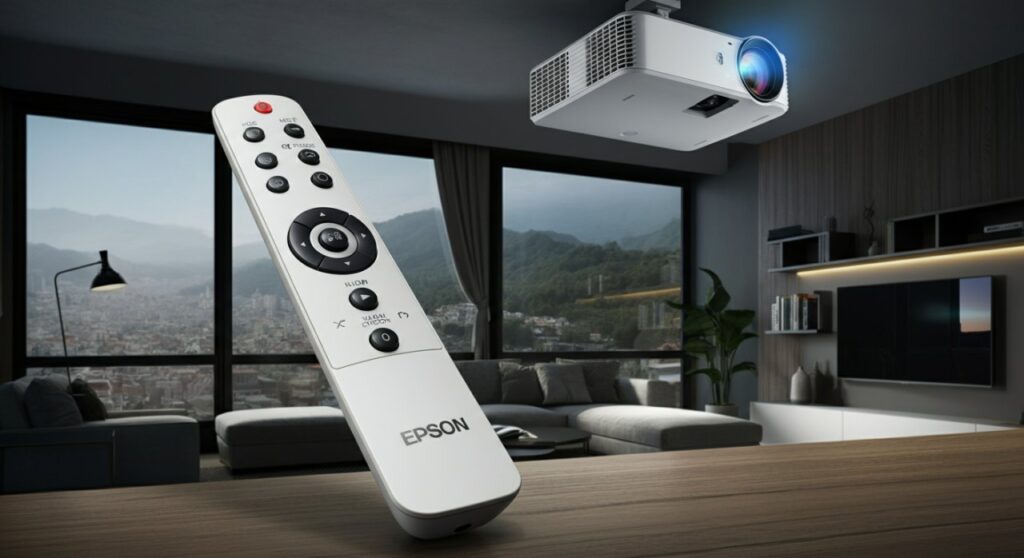
Understanding Why Your Image Appears Flipped
If you have just installed your projector on a ceiling mount, it is perfectly normal for the image to appear upside down. Epson projectors are designed for versatile installation, meaning they can be placed on a table, mounted to a ceiling, or used in rear-projection setups.
When you hang the unit upside down, the internal software must be told to compensate for the orientation. Knowing how to flip an Epson projector image ensures your display matches your physical setup without needing to adjust the hardware itself.
How to Flip an Epson Projector Image: Step-by-Step Guide
Most Epson models follow a similar menu structure, though specific button names may vary slightly by series. Follow these steps to flip the image on an Epson projector quickly.
Step 1: Access the Main Menu
- Power on your Epson projector and let it warm up.
- Press the Menu button on your remote control or the projector’s control panel.
- Use the arrow keys to navigate the on-screen display (OSD).
Step 2: Locate Installation Settings
- Navigate to the Extended or Installation menu tab.
- Look for an option labeled Projection or Installation.
- If you do not see these, check the Settings or Display sub-menus.
Step 3: Select the Correct Orientation
Once you find the Projection setting, you will typically see these options:
- Front (Normal): Best for standard table-top placement.
- Front/Ceiling: Use this when the projector is mounted upside down on the ceiling.
- Rear: Select this if the projector is placed behind a translucent screen.
- Rear/Ceiling: Use this for rear projection where the unit is also mounted upside down.
Comparison of Projection Modes
Choosing the correct setting is vital for achieving a proper aspect ratio and orientation. The table below summarizes how each mode changes the output.
| Projection Mode | Placement | Orientation |
|---|---|---|
| Front | Table-top (Front) | Normal |
| Front/Ceiling | Ceiling Mount (Front) | Inverted (Upside Down) |
| Rear | Behind Screen | Mirrored (Left to Right) |
| Rear/Ceiling | Behind Screen + Ceiling | Inverted & Mirrored |
Note: Always verify your mount type before changing these settings to avoid troubleshooting delays.
How to Fix Flipped Image on Projector: Troubleshooting Tips
Sometimes, simply changing the mode does not resolve a distorted image. If you are still struggling with how to flip projector image Epson units, consider these common pitfalls.
Check Your Cable Connections
If the image is reversed or colors look strange, ensure your HDMI or VGA cables are seated firmly. A loose connection can sometimes cause the software to misread the signal, leading to display artifacts.
Reset to Factory Defaults
If you have accidentally changed multiple settings and the screen remains scrambled, performing a factory reset is the best path forward.
- Go to the Reset menu in your settings.
- Select Reset All.
- Be aware that this will erase custom brightness, contrast, and color calibrations.
Firmware Updates
For newer smart projectors, an outdated firmware version can sometimes cause display glitches. Check the official Epson Support website to see if there is an update available for your specific model number.
Expert Advice for Optimal Setup
In my experience installing dozens of Epson projectors for home theaters and classrooms, the most common error is selecting “Rear” when “Front/Ceiling” is required. Take a moment to verify exactly how the lens is facing relative to the screen.
Also, if you are performing a ceiling mount installation, ensure you have measured the “throw distance” accurately before securing the bracket. It is much harder to adjust the physical mount than it is to adjust the software settings.
Frequently Asked Questions
Why is my Epson projector image upside down?
The image is likely upside down because the Projection mode is set to “Front” instead of “Front/Ceiling.” This happens automatically when the projector is mounted on the ceiling, and you must manually change the setting in the Extended menu.
Does every Epson projector have the “Front/Ceiling” option?
Almost all modern Epson home theater and business projectors include this feature. If your model is very old or a pico-projector, check your user manual, as some ultra-portable units lack this software inversion capability.
Will flipping the image affect the quality?
No, changing the orientation mode within the software is a standard process that does not degrade the image resolution or color accuracy. It simply re-renders the output to match your installation.
How do I flip the screen on an Epson projector if I lost the remote?
You can usually access the Menu using the physical buttons located on the top or side of the projector chassis. If those are missing, you may need to purchase a replacement Epson remote or use the Epson iProjection app if your unit supports network control.









