

TL;DR: Quick Solutions for Projector Audio
If you have lost your remote, you can still control your audio using the projector’s physical control panel, connecting external speakers via the 3.5mm jack, or adjusting settings through your connected device (laptop, streaming stick, or gaming console). Most modern projectors, including popular brands like Vankyo, have onboard buttons that allow for basic volume adjustment without needing the original remote.
How to Turn Up Volume on Projector Without Remote: Initial Steps
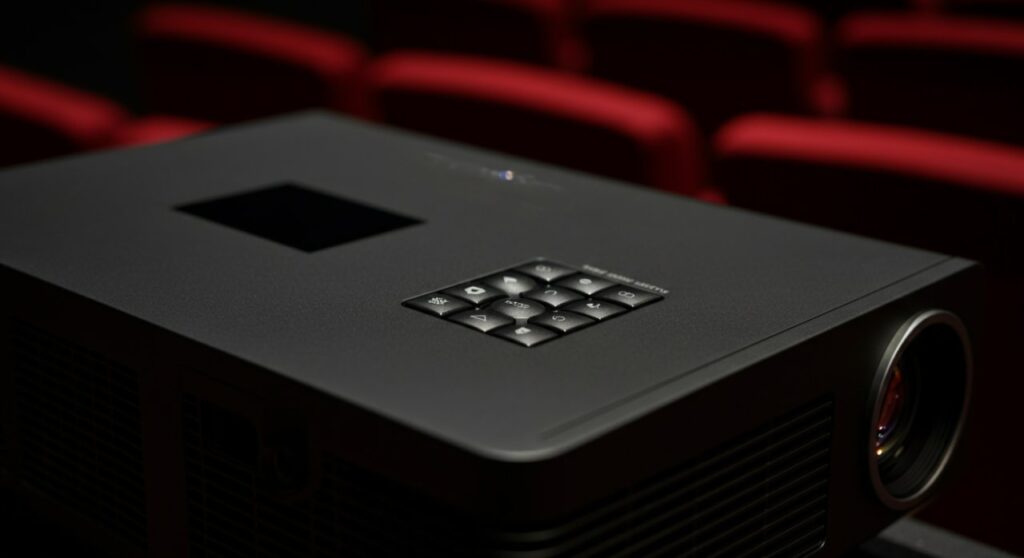
The most immediate way to resolve sound issues is to inspect your projector’s physical interface. Many devices feature a set of menu navigation buttons on the top or side panel.
Look for buttons labeled “+” and “-“ or “Vol”. Often, pressing the “Menu” button allows you to navigate to the “Audio” or “Sound” settings using the arrow keys to increase the volume levels manually.
If you are wondering specifically how to turn up volume on Vankyo projector without remote, check the top casing. These models frequently include a navigation wheel or directional buttons that function as volume controls when you are not in the main settings menu.
Using External Speakers for Better Control
Relying on built-in projector speakers often results in tinny, quiet sound quality. A more professional approach is to route your audio through external sound systems.
- 3.5mm Audio Cable: Connect your speakers directly to the Audio Out port on the projector.
- Bluetooth Connectivity: If your projector supports Bluetooth, pair it with a portable speaker or soundbar using the Settings menu.
- HDMI ARC: For high-end projectors, use the HDMI ARC (Audio Return Channel) port to connect to a receiver or soundbar.
By using an external source, you bypass the need to touch the projector entirely. You can simply use the volume knob on your speaker or the remote control of your soundbar system to manage the audio levels effortlessly.
Adjusting Audio via Connected Media Devices
Often, the easiest way to solve the issue is by adjusting the volume at the source device rather than the projector. Whether you are using a laptop, Roku stick, or Chromecast, the source device handles the audio signal before it reaches the projector.
Steps to adjust volume via source:
- Windows/Mac Laptops: Adjust the master volume in the taskbar or menu bar.
- Streaming Sticks: Use the mobile app (e.g., Roku App or Google Home) to turn up the volume remotely via your smartphone.
- Gaming Consoles: Access the system settings on your PlayStation or Xbox to boost the output volume.
Volume Control Comparison
| Method | Ease of Use | Sound Quality | Required Equipment |
|---|---|---|---|
| Physical Buttons | Moderate | Poor | None |
| Source Device | High | Good | None |
| External Speakers | High | Excellent | Speakers/Cables |
| Mobile Apps | High | Good | Smartphone |
Troubleshooting Common Audio Issues
If you have tried the methods above and still cannot hear sound, there may be a configuration mismatch. Ensure the input source is sending the correct audio format.
- Check Mute Settings: Sometimes, the projector itself is set to “Mute” via a physical button.
- Audio Format: Ensure your device is outputting PCM audio, as many older projectors cannot decode Dolby Digital or DTS.
- Firmware Updates: If you are using a smart projector, check for updates that might resolve software bugs affecting audio output.
Frequently Asked Questions
Can I use a universal remote to control my projector volume?
Yes, many universal remotes are compatible with major projector brands. You will need to input the specific IR code for your projector model to regain full control of the volume and settings.
Why is the volume still low after I turned it up on my laptop?
Check the projector’s internal volume settings via the Menu button. Even if your laptop is at 100%, the projector may have its own independent master volume limit that needs to be increased manually.
Does a HDMI cable carry audio to the projector?
Yes, HDMI cables carry both high-definition video and audio signals. If you are not getting sound, verify that your computer or media player is set to output audio through the HDMI device rather than the internal speakers.
How do I know if my projector supports external speakers?
Look for a 3.5mm headphone jack or an RCA (Red/White) output port on the back of the unit. If you see these ports, your projector is designed to support external audio expansion.









